
Overview :🧧
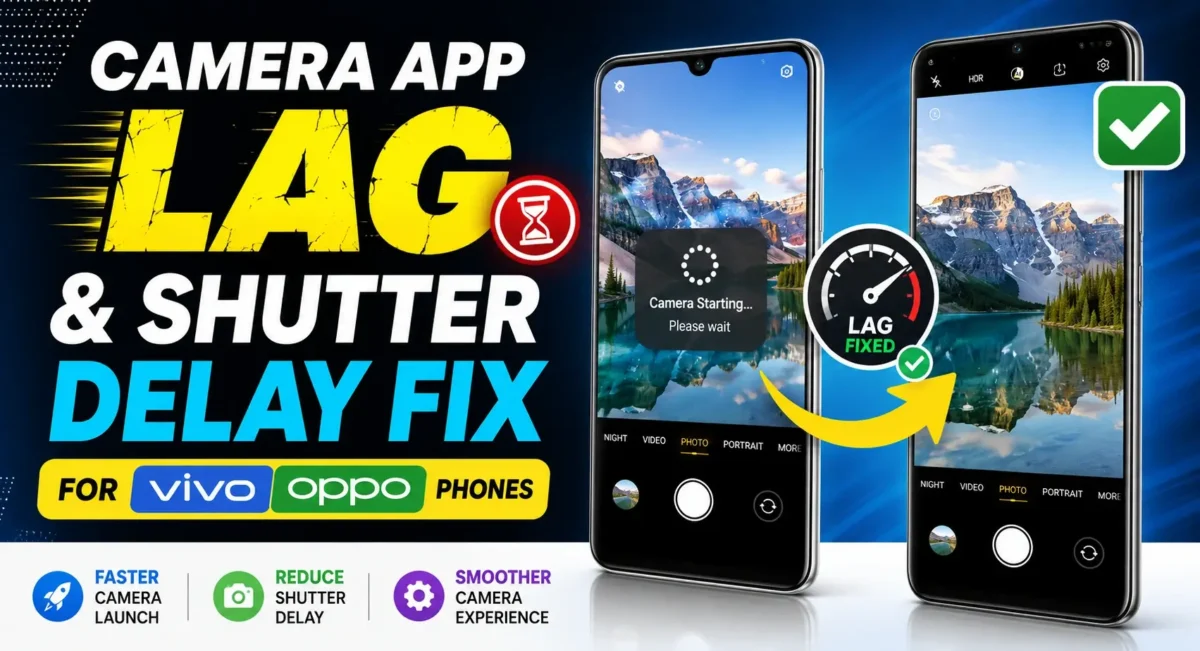
Vivo Camera Shutter Lag Fix: Smartphone cameras have improved massively in the last few years. Even mid-range phones from brands like Vivo and OPPO now offer:
- High megapixel sensors
- AI photography
- Night mode
- Portrait effects
- HDR processing
- Advanced image enhancement
But many users face a frustrating problem after some time:
- Camera app opens slowly
- Shutter button responds late
- Photo takes 2–5 seconds to save
- Camera freezes while switching modes
- Images appear after delay
- Video recording starts late
This issue is common on some mid-range Vivo and OPPO devices, especially after software updates or long-term usage.
The good news is that most of these problems are related to camera processing, storage, RAM management, and software settings not necessarily a damaged camera.
This guide explains why your camera becomes slow and how to optimize it for faster shooting.

Why Is the Camera App Lagging on Vivo and OPPO Phones?
Modern smartphone cameras do much more than simply capture an image. When you press the shutter button, the phone processes:
- Multiple frames
- HDR calculations
- AI scene detection
- Noise reduction
- Face enhancement
- Colour correction
All of this requires:
- Processor power
- RAM
- Storage speed
On mid-range devices, heavy processing can sometimes create delays.
1. Camera App Cache Gets Corrupted
The camera app stores temporary files to improve speed.
Over time, cache can become:
- Too large
- Corrupted
- Slow
This may cause:
- Slow camera opening
- Laggy preview
- Delayed shutter response
Fix: Clear Camera Cache Safely
Go to:
Settings → Apps → Camera
Open:
Storage
Tap:
Clear Cache
This will not delete:
- Photos
- Videos
- Camera settings (in most cases)
Restart the phone and test again.
2. Low Storage Slows Camera Processing
This is one of the biggest reasons behind shutter delay. When you capture a photo, the phone needs temporary space for:
- Image processing
- Saving files
- AI effects
If storage is almost full, the camera slows down.
Recommended Storage Rule
Keep at least:
- 15–20% free storage
For example:
If your phone has 128GB storage, try keeping:
- 20GB+ free
Remove:
- Duplicate photos
- Large videos
- Unused apps
- WhatsApp media
3. Too Many AI Camera Features Enabled
Vivo and OPPO cameras include many smart features:
- AI scene recognition
- Beauty filters
- Portrait enhancement
- HDR
- Night mode processing
These improve photos but increase processing time.
Try This:
Open Camera Settings.
Disable unnecessary features:
- AI enhancement
- Extra filters
- Beauty effects
- Keep only what you need.
You may notice faster shutter response.
4. Background Apps Using RAM
The camera needs RAM to process images.
If many apps are running:
- Chrome
- Games
- Editing apps
- Social apps
the system may struggle.
Symptoms:
- Camera reloads
- Slow switching
- Delayed capture
Fix:
Before taking important photos:
- Close heavy apps.
Restart the phone if the camera feels unusually slow.
5. RAM Expansion (Virtual RAM) Settings
Vivo and OPPO phones offer:
- Extended RAM
- RAM Expansion
This uses internal storage as additional memory.
It helps with:
- Multitasking
- Keeping apps open
But it does not replace real RAM.
Recommended Setting
For phones with:
6GB RAM:
Use:
2–4GB expansion
8GB RAM:
Use:
2–6GB expansion
Avoid selecting maximum blindly.
Too much virtual RAM can sometimes increase storage usage.
6. Battery Saver Reduces Camera Performance
Battery-saving modes limit processor speed. When enabled, your phone may reduce:
- CPU performance
- Background processing
- AI features
This can make the camera slower.
Fix:
Go to:
Settings → Battery
Turn off:
- Battery Saver
- Super Power Saving Mode
Test camera again.
7. Phone Heating Causes Performance Drop
When your phone gets hot, the system reduces performance to protect hardware. This is called thermal throttling.
You may notice:
- Camera lag after gaming
- Slow video recording
- Delayed shutter
Fix:
Before using the camera:
- Close heavy apps
- Remove thick case temporarily
- Let the phone cool down
8. Update Camera App and System Software
Sometimes camera problems come from software bugs.
Check:
Settings → Software Update
Install updates if available.
Also update:
- System apps
- Camera app
- Google components
Updates often fix:
- Camera crashes
- Slow processing
- Focus issues
9. Change Camera Resolution Settings
Higher resolution means more processing.
For example:
- 50MP/108MP modes require more processing than normal photo mode.
If you need faster shooting:
Use:
- Standard photo mode
- Normal resolution
Use high megapixel mode only when needed.
10. Disable Motion Capture / Ultra Snapshot Features
Some camera features constantly prepare the camera for instant shots.
They may consume:
- RAM
- Battery
- Background processing
Check camera settings for:
- Motion capture
- Quick launch
- Smart capture
Disable unnecessary options.
Vivo-Specific Camera Optimization :
Camera App Lag Vivo :
For Vivo phones:
Try:
- Settings → Battery
Enable performance mode when needed.
Also check:
- iManager → Phone Cleanup
Remove unnecessary background processes.
OPPO-Specific Camera Optimization :
Oppo Camera Shutter Delay : For OPPO phones running ColorOS:
Go to:
- Settings → Battery
Manage:
- App battery usage
Allow camera normal performance.
Also check:
- Phone Manager
for storage cleanup.
Fix Camera Lag After Android Update :🚀
Many users notice camera slowdown after:
- Android update
- Funtouch OS update
- ColorOS update
After a major update, the system may rebuild:
- App optimization
- Cache
- Background services
- Give it some time.
If the issue continues:
Try:
1. Clear camera cache
2. Restart phone
3. Update apps
4. Reset camera settings
Reset Camera Settings :📷
If a wrong setting is causing lag:
Open Camera:
- Settings → Restore Default Settings
This resets:
- Modes
- Filters
- Camera preferences
It does not delete photos.
Should You Factory Reset?
Only consider it if:
- Camera freezes everywhere
- Apps crash
- Phone has major software issues
Before reset:
Backup:
- Photos
- Videos
- Documents
What NOT To Do :🤔
Avoid: 👇
Installing Random Camera Booster Apps
- Most do nothing and may add background load.
Clearing Camera Data Repeatedly
- Cache clearing is safe.
- Data clearing resets the camera app completely.
Using Maximum Camera Mode Always
- High-resolution modes are not designed for every photo.

Quick Optimization Checklist :📋
Try these steps: 👇
- Clear camera cache
- Free storage space
- Close background apps
- Disable unnecessary AI effects
- Turn off battery saver
- Keep phone cool
- Update software
- Use normal photo mode for faster shots
📌”More TroubleShooting Related Posts“👈
Final Verdict :🙌
If your Camera App Lag and Shutter Delay on Mid-Range Vivo/Oppo Devices , the problem is usually caused by heavy image processing, low storage, RAM pressure, or software optimization issues.
The best way to improve camera speed is not by installing extra apps it is by optimizing the phone:
- Keep storage free
- Reduce unnecessary camera effects
- Manage background apps
- Use the right performance settings
With proper optimization, most mid-range Vivo and OPPO smartphones can deliver much faster camera response and smoother photography.
🔗
