
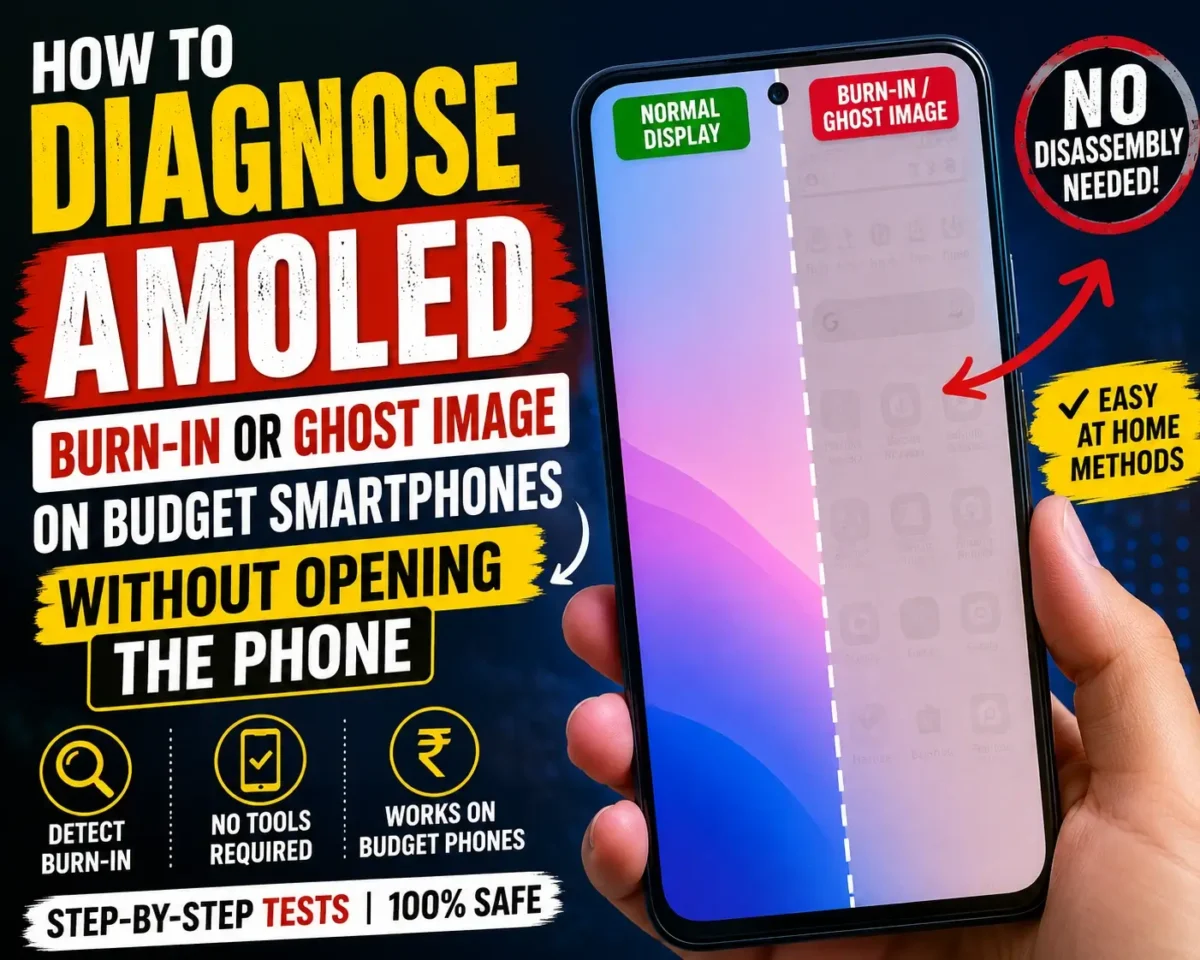
AMOLED Burn-In Diagnose :🧧
AMOLED displays are now common in budget phones, offering vibrant colors, deep blacks, and good contrast. Even in the present day, most budget handsets from Samsung, Redmi, Realme, Vivo, Motorola, Infinix, and POCO come with AMOLED displays that were originally reserved for premium devices.
But AMOLED technology is not without its drawbacks. After a while, some users may see faint screen shadows, image retention, or burn-in marks that stay visible even after switching apps. These effects are frequently related to AMOLED burnout or ghosting.
The good news is you don’t need to open your phone to spot these issues. In this guide, you will learn how to detect an AMOLED burn-in or ghost image on budget smartphones without disassembling them, as well as the main differences between temporary image retention and permanent screen damage.

What Is AMOLED Burn-In?
AMOLED burn-in occurs when a sequence of pixels wear out faster than others after running the same content for an extended period.
Common examples include:
- Navigation buttons
- Status bar icons
- App logos
- YouTube controls
- TikTok interface elements
- Keyboard outlines
- Notification bar icons
As the display ages, these elements can leave permanent marks that remain visible on the screen.
What Is a Ghost Image?
A ghost image, also known as image retention, is different from burn-in.
Ghost Image Characteristics :
- Usually temporary
- Appears after displaying static content
- May disappear after a few minutes
- Often caused by pixel memory effects
Unlike AMOLED burn-in, a ghost image does not necessarily indicate permanent damage.
AMOLED Burn-In vs Ghost Image :
| Feature | AMOLED Burn-In | Ghost Image |
|---|---|---|
| Permanent | Yes | Usually No |
| Visible All The Time | Yes | Sometimes |
| Gets Worse Over Tim | Yes | Usually No |
| Can Disappear | No | Often Yes |
| Requires Display Replacement | Often Yes | Usually No |
Understanding the difference is the first step in diagnosing the problem.
Signs Your Phone May Have AMOLED Burn-In :
Before performing tests, look for these warning signs.
Common Symptoms :
- Faint keyboard outline visible on white backgrounds
- Status bar icons permanently visible
- YouTube controls remain visible after closing the app
- Navigation buttons leave shadows
- App logos appear faintly on other screens
- Uneven display brightness
If you notice any of these symptoms, further testing is recommended.

Method 1: Use a Full White Screen Test
One of the easiest ways to detect AMOLED burn-in is by displaying a completely white screen.
Steps
1. Increase brightness to 100%.
2. Open a white image in full-screen mode.
3. Look carefully at the display.
What to Look For
- Faint app icons
- Keyboard outlines
- Navigation bar shadows
- Status bar marks
Permanent outlines often become much easier to spot on a white background.
Method 2: Check Solid Color Screens
Burn-in can appear differently depending on screen color.
Test These Colors :
- White
- Gray
- Red
- Green
- Blue
Open each color in full-screen mode and inspect the display carefully.
Signs of Burn-In
- Uneven color patches
- Persistent shadows
- Visible outlines of previous screen elements
This method is commonly used by service technicians to diagnose AMOLED display issues.
Method 3: Lower Screen Brightness
Interestingly, burn-in is sometimes easier to spot at lower brightness levels.
Steps
1. Reduce brightness to around 20–30%.
2. Open a gray background.
3. Observe the display carefully.
Many ghost images become more visible when brightness is reduced.
Method 4: Rotate the Screen
A simple trick can help confirm whether the issue is related to the display.
Steps
1. Rotate the phone from portrait to landscape.
2. Open a full-screen image.
If the shadow remains fixed in the same physical location on the screen, it likely indicates AMOLED burn-in rather than a software issue.
Method 5: Take a Screenshot
This is one of the most effective diagnostic methods.
Steps
1. Take a screenshot while the issue is visible.
2. Open the screenshot on another device.
Results
If the shadow appears in the screenshot:
- It may be a software issue.
If the shadow does not appear in the screenshot:
- The issue is likely related to the display hardware.
- This method helps rule out software glitches quickly.

Method 6: Use Built-In Diagnostic Tools
Many smartphone brands provide display testing options.
Samsung
Dial:
`0`
Then select display tests.
Xiaomi, Redmi, POCO
- Access hardware testing through built-in diagnostic menus (availability varies by model).
Motorola, Vivo, and Realme
- Use the device diagnostics section in settings or support applications when available.
These tools can help identify screen abnormalities without opening the phone.
Method 7: Observe Static Elements
Certain screen elements are more likely to cause AMOLED burn-in.
Check These Areas :
- Battery icon
- Wi-Fi icon
- Clock position
- Navigation buttons
- Instagram interface
- YouTube controls
If their outlines remain visible continuously, burn-in may be present.
What Causes AMOLED Burn-In?
Several factors can accelerate pixel wear.
Common Causes :
- High brightness usage
- Long gaming sessions
- Static app interfaces
- Always-On Display
- Navigation buttons remaining visible
- Continuous video playback
- Extended screen-on time
Budget AMOLED panels may be more susceptible to burn-in than premium flagship displays.
Can AMOLED Burn-In Be Fixed?
Unfortunately, true AMOLED burn-in is usually permanent.
However, if the issue is actually a ghost image, some improvements may be possible.
Potential Solutions for Ghost Images :
- Restart the device
- Use dark mode
- Reduce screen brightness
- Run pixel-refresh applications
- Display moving content for several hours
These methods may reduce temporary image retention.
How to Prevent AMOLED Burn-In :
Prevention is much easier than repair.
Best Practices :
- Use auto-brightness
- Enable dark mode
- Reduce screen timeout duration
- Avoid maximum brightness for long periods
- Hide navigation buttons when possible
- Enable adaptive refresh rate
- Avoid displaying static images for extended periods
These habits can significantly extend AMOLED display life.
When Should You Visit a Service Center?
Professional inspection may be necessary if:
Warning Signs :
- Burn-in becomes increasingly visible
- Multiple areas are affected
- Display discoloration appears
- Brightness becomes uneven
- Touchscreen performance is affected
In severe cases, display replacement may be the only permanent solution.

Conclusion :
Knowing how to spot AMOLED burn-in or ghost image on budget phones, and how to check them without having to take the phone apart, can save you a lot of time and money. Simple tests such as the white-screen test, color pattern test, screenshot comparison test, and use of built-in diagnostics will let you know if you’ve got temporary image retention or permanent AMOLED burn-in.
In many cases burn-in is actually a temporary ghost image that fades away. Having said that, if there are things that linger on other walls and brightness settings, these might be shadows generated by your AMOLED display.
Detecting the issue early on and looking after your screen can enable you to get the most out of your AMOLED phone and get a better visual amusement for a longer period.
🔗
📌”Xiaomi India — Official Website Page”👈
Frequently Asked Questions — FAQ/s
Is AMOLED burn-in common on budget smartphones?
Theer is a lot rarer than most people think, but longterm exposure at high brightness may lead to higher risk.
Can ghost images disappear on their own?
Yes. The after-image loss is usually disappearing within few minutes or hours.
Does dark mode prevent burn-in?
Dark mode can reduce pixel strain and possibly contribute to less wear over time.
Will a factory reset remove AMOLED burn-in?
No. Burn in is a hardware problem and can’t be fixed by doing a reset.
Can I diagnose AMOLED burn-in without opening the phone?
Yes. White-screen tests, color tests, screenshots, and diagnostic utilities can be used to detect burn-in without taking apart the device.

1 thought on “How to Diagnose an AMOLED Burn-In or Ghost Image on Budget Smartphones Without Opening the Phone”