
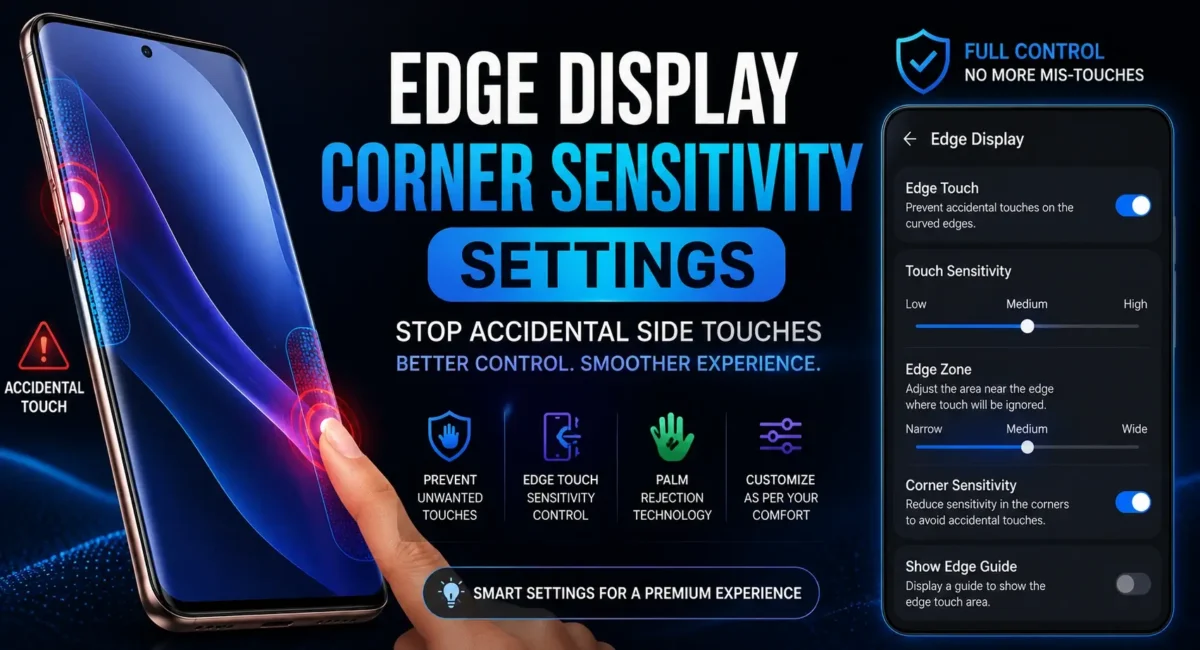
Edge Display Corner Sensitivity Settings :🧧
Edge Display Accidental Touch Settings: Premium Smartphones with curved or edge display are really looks amazing and more attractive. Brands like Samsung, Vivo, Xiaomi, Motorola, Honor, and Huawei have released a number of flagship devices featuring a curved-edge design that not only makes the device look better but also improves the screen-to-body ratio.
but one problem that many users of these devices suffer the side touch is accidental. Playing games, scrolling through social media, typing messages or watching videos, inadvertent touches due to fingers being near the edges of the screen are a common source of frustration.
Thankfully, now there are Edge Display Corner Sensitivity Settings in most of the smartphones increasing the usability and stopping the unwanted touches. In this article, let’s discuss what edge sensitivity settings do to the display and why touches are registered accidentally and what you can do to improve your device to improve your experience.

What Are Edge Display Corner Sensitivity Settings?
Edge Display Corner Sensitivity Settings are software control parameters that define the smartphone’s sensitivity for touches near curved edges and corners of the screen.
These settings help the device distinguish between:
- Intentional finger taps
- Accidental palm touches
- Edge swipes
- Corner gestures
By fine-tuning touch sensitivity around the screen’s borders, users can significantly reduce unwanted inputs.
Why Do Accidental Side Touches Happen?
Curved displays extend closer to the frame of the phone.
As a result, your fingers or palm may unintentionally make contact with the display while:
Common Scenarios :
- Holding the phone with one hand
- Gaming in landscape mode
- Taking photos
- Typing messages
- Watching videos
- Reading articles
Since the display remains active along the edges, the device may register these contacts as actual touch inputs.
Benefits of Using Edge Display Corner Sensitivity Settings :
Many users ignore these options even though they can greatly improve everyday usability.
Key Benefits :
- Fewer accidental taps
- Better gaming experience
- Improved typing accuracy
- Reduced ghost touches
- More comfortable one-handed usage
- Better palm rejection
Properly configuring Edge Display Corner Sensitivity Settings can make a curved-display smartphone feel significantly more responsive and reliable.
Samsung Edge Display Corner Sensitivity Settings :
Samsung offers some of the best accidental touch protection features.
How to Adjust Settings :
1. Open Settings.
2. Tap Display.
3. Select Accidental Touch Protection.
4. Enable the feature.

Additional Options
Some Galaxy devices also include:
- Touch sensitivity controls
- Edge panel adjustments
- Palm rejection improvements
Samsung’s software automatically reduces accidental touches around the curved display area.
Xiaomi and HyperOS Devices :
Several Xiaomi flagship phones feature curved AMOLED displays.
Steps
1. Open Settings.
2. Go to Display.
3. Tap More Display Settings.
Look for:
- Accidental Touch Prevention
- Edge Touch Protection
- Gesture Settings
Depending on the model, Xiaomi may provide multiple levels of edge touch protection.
Vivo Smartphones :
Vivo’s premium X-series devices often include curved-edge displays.
To Adjust Touch Sensitivity
1. Open Settings.
2. Navigate to Shortcuts & Accessibility.
3. Open Touch Settings.
4. Enable accidental touch prevention options if available.
Many Vivo phones automatically optimize edge sensitivity through software updates.
Motorola Edge Series :
Motorola’s Edge lineup is well-known for curved displays.
Recommended Settings
1. Open Settings.
2. Select Display.
3. Open Edge Display Options.
4. Adjust touch sensitivity levels.
Some models allow users to customize gesture zones separately from touch zones.
Best Edge Display Corner Sensitivity Settings for Gaming :
Gamers often experience accidental touches while holding the phone in landscape mode.
Recommended Adjustments :
- Enable accidental touch protection.
- Increase palm rejection.
- Disable unnecessary edge gestures.
- Use game mode if available.
- Lock navigation gestures during gaming.
These changes can significantly improve gameplay in titles like:
- BGMI
- Call of Duty Mobile
- Free Fire MAX
- Asphalt Legends

How to Test Edge Touch Sensitivity :🤔
After adjusting your settings, it’s important to test them.
Testing Method :
1. Hold the phone normally.
2. Open a browser or gallery app.
3. Scroll using one hand.
4. Observe whether accidental touches occur.
If unwanted touches continue, increase edge protection levels further.
Use a Protective Case
A quality protective case can help reduce accidental touches.
Why It Helps
Cases create a slight gap between your hand and the display edge.
Benefits include:
- Better grip
- Fewer side touches
- Improved comfort
- Extra protection against drops
For many users, a good case is as effective as adjusting Edge Display Corner Sensitivity Settings.
Disable Unnecessary Edge Features :😲
Some premium phones include additional edge gestures.
Examples include:
- Smart Sidebar
- Edge Panels
- Quick Launch Menus
- Gesture Navigation
If you frequently trigger these features accidentally, consider disabling them.
How It Helps
- Reduces false inputs
- Improves touch accuracy
- Creates a cleaner interface
Update Your Smartphone Software :🔒
Manufacturers regularly improve touch algorithms through software updates.
Benefits of Updates :
- Better palm rejection
- Improved edge detection
- Enhanced touch responsiveness
- Reduced ghost touches
Before making major changes, ensure your phone is running the latest software version.
When Accidental Touches May Indicate a Problem :🕵️♂️
Not every edge-touch issue is caused by display design.
Warning Signs :
- Random touches without contact
- Ghost touch issues
- Screen responding by itself
Touch inputs occurring while the phone is stationary
These symptoms may indicate :
- Display damage
- Software bugs
- Faulty touch digitizer
- Moisture intrusion
In such cases, professional diagnosis may be necessary.
Best Practices for Curved Display Phones :🚀
To get the most from your edge-display smartphone:
Recommended Tips :
- Enable accidental touch protection
- Adjust Edge Display Corner Sensitivity Settings
- Use a protective case
- Keep software updated
- Disable unused edge gestures
- Avoid low-quality screen protectors
Just with these minor modifications, the whole experience can be vastly enhanced.

Conclusion :🙌
Curved-edge displays provide a premium feel and immersive experience, but unintentional touches on the sides sometimes make them less usable. Fortunately, contemporary smartphones come with Edge Display Corner Sensitivity Settings which give the users ability to adjust the touch sensitivity around the edges and corners of the screen.
Throw in auto touch rejection, tweaks to Edge Display Corner Sensitivity Settings, a quality protective case, and regular software updates, and you can minimize accidental inputs and enjoy a smoother smartphone experience.
If you have a Samsung Galaxy Ultra, Vivo X Series, Xiaomi flagship, Motorola Edge device, or any other high-end curved screen phone, tweaking your Edge Display Corner Sensitivity Settings is one of the quickest usability wins and will save you from lots of infuriating false touches.
🔗
📌”Vivo India — Official Website Link”👈
Frequently Asked Questions — FAQ/s
What are Edge Display Corner Sensitivity Settings?
The Edge Display Corner Sensitivity Controls are software modifications on the touch sensitivity near the curved edges of the display to avoid unintentional touches.
Do all premium phones have Edge Display Corner Sensitivity Settings?
Now, the majority of high-end phones with curved displays come with a kind of edge touch protection, though the name and options vary depending on the manufacturer.
Can accidental side touches be completely eliminated?
Not completely but adjusting the Edge Display Corner Sensitivity Settings will help a lot with it.
Does a phone case help prevent accidental touches?
Yes. A protective case can improve grip and reduce unintended contact with display edges.
Should gamers adjust Edge Display Corner Sensitivity Settings?
Absolutely. Gaming often increases accidental edge touches, making sensitivity adjustments particularly useful.
