Overview :🧧
Recover Data from Broken Screen Android Phone : It can be so stressful to drop your phone and find that the touchscreen doesn’t respond. Often the display still works, but touch input is completely frozen. At times when the screen goes black, the phone still vibrates, ringing calls, and notification sounds.
The biggest issue for most people isn’t fixing the phone it’s getting important memories back.
Photographs of family, documents from work, WhatsApp chats, contacts, videos, and personal files often become stranded simply because the touchscreen is the only way to unlock the device.
The good news is that a dead touchscreen doesn’t necessarily mean that you have lost your data. If the motherboard and storage of the phone are intact, you can get your files off the phone in several safe ways before taking the costly route of data recovery services.
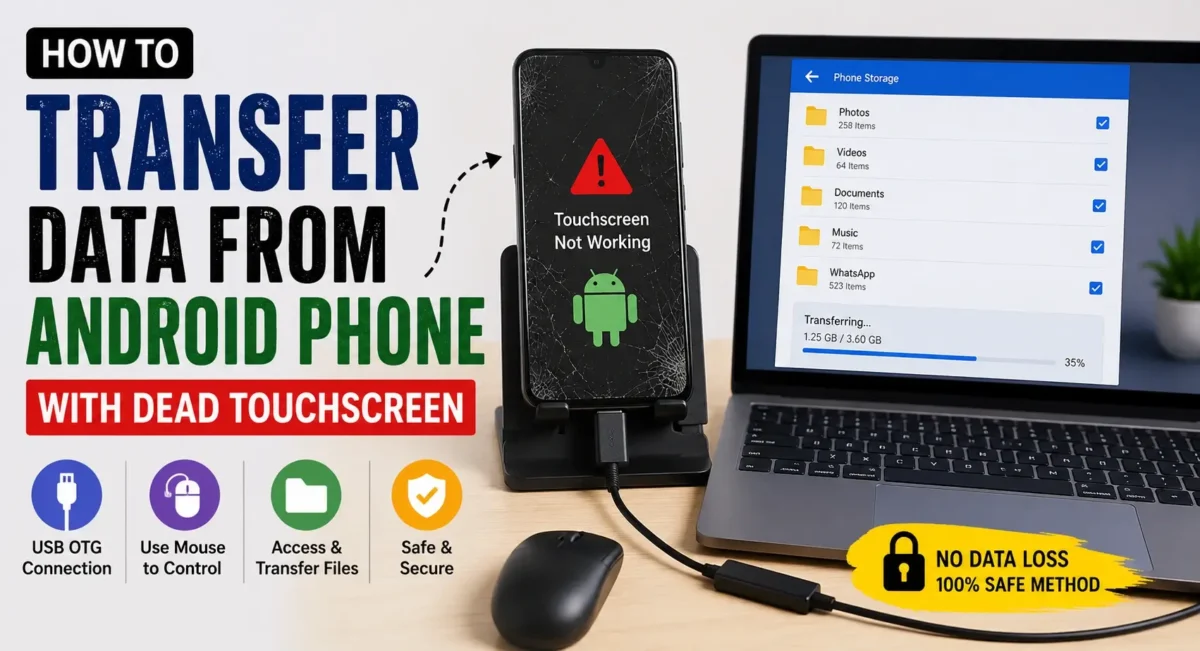
Recover Data from Android Phone with Dead Touchscreen : In this tutorial, we will show you how to recover your photos and personal data from an Android phone with a frozen touchscreen. Whether you are using Samsung, Xiaomi, OnePlus, vivo, OPPO, realme, Motorola, Google Pixel, or Nothing Phone, the methods can be applicable to a certain extent based on the state of your phone.
If you keep up with the honest mobile reviews and ratings, you’ll find that repairability and options for backups are becoming as critical as camera quality or processor speed. As such, every smartphone buying guide India should take into account how easy is it to get your data back if you accidentally damage your phone.
First, Check What Still Works :🕵️♂️
Before trying to recover your files, determine the phone’s condition.
Ask yourself:
- 👉 Does the phone still power on?
- 👉 Does it vibrate when receiving calls?
- 👉 Can you hear notification sounds?
- 👉 Does the display still show images?
- 👉 Can you unlock it using a fingerprint sensor?
- 👉 Does the phone charge normally?
If the phone is still running internally, your chances of successful data recovery are much higher.
Method 1: Use an OTG Adapter and USB Mouse
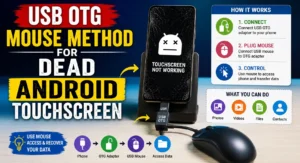
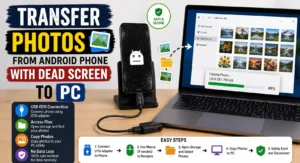
If the display works but the touchscreen doesn’t respond, one of the easiest solutions is using a USB OTG (On-The-Go) adapter.
What You’ll Need : 👇
- USB OTG adapter
- USB mouse
- Working display
Steps
1. Connect the OTG adapter to your phone.
2. Plug a USB mouse into the adapter.
3. A mouse pointer should appear on the screen.
4. Unlock the phone using the mouse.
5. Access your Gallery, Files, or Settings.
6. Transfer your data to a computer or cloud storage.
This method works well on many Android phones that support OTG functionality.
Method 2: Connect the Phone to a Computer
If USB debugging was already enabled before the touchscreen failed, recovering files becomes much easier.
After connecting the phone to your PC:
- Open File Explorer (Windows) or Android File Transfer (supported systems).
- Copy photos and videos from the DCIM folder.
- Transfer Downloads, Documents, and other personal files.
If USB debugging wasn’t enabled and the phone requires touchscreen confirmation for file transfer, this method may not work without additional accessories.
Method 3: Recover Photos from Google Photos
Many Android users automatically back up their pictures to Google Photos without realizing it.
Check by signing in to the same Google account on another phone or computer.
If backup was enabled, you’ll likely find:
- Photos
- Videos
- Screenshots
- Albums
This is often the fastest way to recover precious memories after screen damage.
Method 4: Use Samsung Smart Switch or Manufacturer Software
Some brands offer dedicated backup and recovery tools.
Examples include:
- Samsung Smart Switch
- Xiaomi backup services
- OnePlus Clone Phone
- vivo EasyShare
- OPPO Clone Phone
If a backup was created before the accident, restoring your data to a new device becomes straightforward.
Method 5: Unlock Using Fingerprint or Face Unlock
If your fingerprint sensor still works, unlock the phone before attempting data transfer.
Once unlocked:
- Connect to a computer.
- Use a USB mouse if needed.
- Upload files to cloud storage.
- Copy data to a USB drive using OTG.
Biometric unlocking can save valuable time when the touchscreen is unusable.
Method 6: Use HDMI Output (Supported Devices Only)
- Some premium Android phones support video output through USB-C.
- Using a USB-C hub with HDMI, you can connect the phone to a TV or monitor.
- Combined with a USB mouse, this allows you to control the phone even if the display itself is damaged.
Not every Android device supports HDMI output, so check your phone’s specifications first.
Method 7: Recover WhatsApp Data
If WhatsApp backup was enabled:
1. Install WhatsApp on another phone.
2. Verify the same phone number.
3. Restore from Google Drive backup.
This restores :👇
- Chats
- Photos
- Videos
- Documents
- Voice notes
If backups were disabled, recovering chats becomes much more difficult.
Method 8: Check Google Drive
Besides photos, Google Drive may already contain:
- Documents
- PDFs
- Contacts
- Calendar
- Notes
- App backups
Log into your Google account from another device to check available backups.
What If the Screen Is Completely Black?
If both the display and touchscreen are dead:
- Try calling the phone.
- Check if alarms still ring.
- Connect it to a charger.
- Listen for notification sounds.
If the phone appears alive internally, a temporary screen replacement at an authorized service centre may be enough to recover your data before installing a permanent display.
Common Mistakes to Avoid :✋
Avoid these actions :
- Performing a factory reset
- Installing random recovery apps
- Opening the phone yourself without experience
- Using unofficial flashing software
- Disconnecting the battery repeatedly
These steps may permanently reduce your chances of successful recovery.
When Should You Visit a Service Centre?
Professional help is recommended if:
- The phone doesn’t power on.
- The motherboard is damaged.
- The phone suffered water damage.
- Internal storage cannot be detected.
- Important business or family data must be recovered.
Authorized service centres have specialized tools that consumers generally don’t have access to.
Tips to Protect Your Data in the Future :🚀
Data recovery becomes much easier if good backup habits are already in place.
Follow these simple practices:
- Enable Google Photos backup.
- Back up WhatsApp regularly.
- Sync contacts with your Google account.
- Store important documents in Google Drive or another trusted cloud service.
- Copy important files to a computer once every few weeks.
- Use a strong screen protector and protective case to reduce the risk of display damage.
These habits can save hours of stress if your phone is accidentally damaged.
Final Verdict :🙌
A fully unresponsive touchscreen can feel like a disaster, but it’s not a sign your memories and personal files have been lost forever. The internal storage of the phone still works, but the screen is no longer responding to touch in many instances.
Before you panic and say your prayers, try some easy solutions for recovery like using a mouse with a USB OTG adapter, check your Google Photos and Google Drive backups, hook your device up to your computer, or use manufacturer backup utilities to restore data.
If the phone is still turning on, you might have a very good chance to recover photos, videos, contacts, and documents.
But make your peace with the fact that you need to start backing up regularly. The automatic cloud-syncing process as well as the occasional local backups can prevent you from future headaches and pay-as-you-go data-recovery services.
As many honest Mobile reviews and ratings have highlighted, reliability isn’t just how well a phone performs, but how well it protects your data when you drop it. Also, any realistic smartphone buying guide india needs to take into account things like backup options, repairability and long-term software support as well as cameras, processors and battery life. They are features we often take for granted and barely notice, until they make all the difference when we need our data the most.
🔗
📌”Oppo India — Official Page”👈
Frequently Asked Questions — FAQ/s
Can I recover data if only the touchscreen is broken?
Yes. If the display still works, using a USB OTG adapter with a mouse is often the easiest solution.
Can I recover photos from a phone with a black screen?
If the phone is still functioning internally, recovery may be possible using HDMI output (on supported devices), temporary display replacement, or cloud backups.
Will replacing the display erase my data?
No. Replacing only the display assembly should not erase your personal files, provided the technician does not perform a factory reset.
Can I recover WhatsApp chats?
Yes, if Google Drive backup was enabled before the touchscreen failed.
Is professional data recovery always necessary?
No. Many users can recover their photos and files at home using OTG adapters, cloud backups, or a computer. Professional recovery is generally needed only when the phone has severe hardware damage.

This web site is really a walk-through for all of the info you wanted about this and didn’t know who to ask. Glimpse here, and you’ll definitely discover it.
Thanks, We Appriciate..