
Overview :🧧
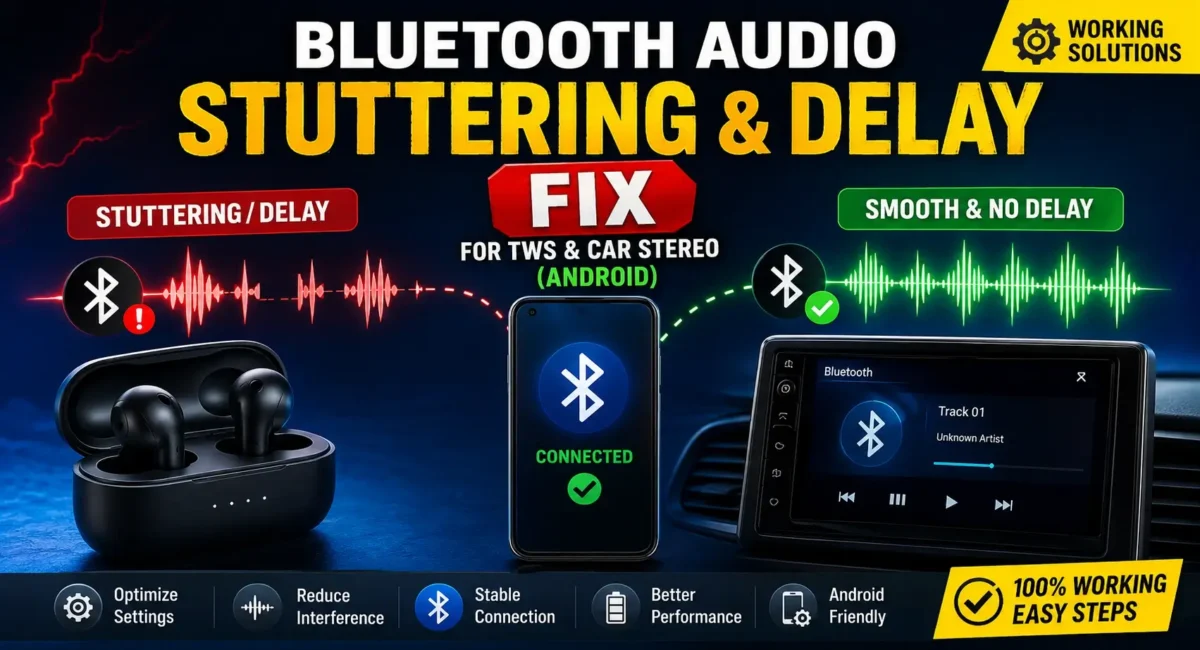
Bluetooth Audio Stuttering : Bluetooth audio has come a long way in the last few years, but we still see issues like audio stuttering, random pauses, lagging sound, or chopping music when we’re using Bluetooth earbuds or connecting them to a car stereo through our phones. These seem to be widespread issues for mid-range Android phones, as these devices generally prioritize battery life over wireless performance.
Imagine you’re driving with a great playlist, and the music starts chopping in and out. Or you’re watching a Youtube on your TWS headphones, but the audio will come to your ears with half a second delay after the person on the screen lip moves. It can really mar the experience.
The good news is that most Bluetooth audio problems aren’t due to bad hardware. It is that, in many instances, are the result of software settings, codec mismatches, background applications, aggressive battery optimizations, or obsolete firmware.
Here’s why your Bluetooth audio stutters on Android phones (Samsung, OnePlus, Xiaomi, realme, Vivo, Oppo, Motorola, Nothing, and basically other Android devices) and some practical fixes.
If you follow honest mobile reviews and ratings that don’t sugarcoat, you may have observed that wireless performance is becoming a bigger factor in which phone to buy now. Which is why every Indian smartphone buying guide should traditionally include Bluetooth stability as a point to consider after Cameras and Battery life.

Why Does Bluetooth Audio Keep Stuttering?
Before trying different fixes, it’s important to understand the possible reasons behind the issue.
Some of the most common causes include: 👇
- Weak Bluetooth signal
- Outdated phone software
- Old firmware on TWS earbuds
- Bluetooth codec incompatibility
- Battery Saver mode limiting wireless performance
- Too many background apps
- Wi-Fi interference
- Corrupted Bluetooth cache
- Multiple connected Bluetooth devices
- Poor-quality third-party earbuds
Fortunately, most of these problems can be fixed within a few minutes.
Fix 1: Restart Bluetooth and Reconnect Your Device
It’s simple but that is usually the best answer. Rather than toggling Bluetooth ON and OFF multiple times, just unpair the device, then pair it again.
Steps:
1. Open Settings
2. Go to Bluetooth
3. Tap your connected earbuds or car stereo
4. Select Forget Device
5. Restart both your phone and the Bluetooth accessory
6. Pair them again
This removes temporary connection errors and refreshes the pairing information.
Fix 2: Keep Your Phone Software Updated
Bluetooth is gradually being getting better with software updates. Manufacturers frequently release patches that fix:
- Audio lag
- Random disconnects
- Bluetooth crashes
- Codec compatibility
- Wireless stability
Go to:
- Settings → Software Update → Check for Updates
Install any available update before trying other troubleshooting methods.
Fix 3: Update Your TWS Earbuds Firmware
Lots of people upgrade their phone, but they forget that today’s wireless earbuds get firmware updates, too.
Brands such as:
- OnePlus Buds
- Samsung Galaxy Buds
- realme Buds Air
- Nothing Ear
- Oppo Enco
- Xiaomi Buds
offer companion apps where firmware updates can improve Bluetooth stability, reduce latency, and fix connection bugs.
Always keep both your phone and earbuds updated for the best experience.
Fix 4: Disable Battery Saver Mode
Battery Saver is designed to reduce power consumption, but it can also affect Bluetooth performance.
When enabled, Android may:
- Limit Bluetooth bandwidth
- Pause background services
- Delay audio processing
- Reduce overall connection stability
If you notice Bluetooth stuttering while Battery Saver is active, temporarily disable it and check if the problem disappears.

Fix 5: Reduce Bluetooth Interference
Bluetooth operates on the same 2.4GHz frequency used by many Wi-Fi routers and smart devices.
If you’re surrounded by multiple wireless devices, interference can cause:
- Audio cuts
- Crackling sound
- Delayed music
- Frequent reconnecting
Try these tips: 👇
- Stay away from congested Wi-Fi space.
- Don’t put your phone in a metal bag or a bulky backpack.
- Have your phone a few feet away from the earbuds or car stereo.
- Turn off unused Bluetooth devices, such as smartwatches or speakers.
Minor differences in distance or interference can make a big difference in the connection quality.
Fix 6: Close Heavy Background Apps
A lot of people think Bluetooth is very light on the processor, but streaming high-quality audio while running several demanding applications can actually ramp up CPU usage.
Apps such as:
- Video editors
- Large games
- Screen recorders
- Camera apps
- Navigation apps running in the background
can sometimes compete for system resources.
Before you use Bluetooth audio for music or videos, close any unnecessary apps to free up RAM. This is especially useful on phones with 6GB or 8GB RAM as heavy multitasking can affect the wireless performance.
Fix 7: Reset Bluetooth and Network Settings
If you’ve done the simple fixes and the audio continues to stutter, your issue might be with corrupted Bluetooth settings saved on your phone. This can occur after a large Android update, or after pairing multiple Bluetooth devices over time.
Rather than a full factory reset, try just resetting the network settings first.
Steps
1. Open Settings
2. Go to System or General Management
3. Tap Reset
4. Select Reset Wi-Fi, Mobile Network & Bluetooth
5. Confirm the reset
6. Pair your TWS earbuds or car stereo again
This process removes saved Bluetooth pairings and network settings but does not delete your photos, apps, or personal files.
Fix 8: Reduce Bluetooth Latency While Watching Videos
Many customers say music is fine but YouTube, Netflix, Instagram Reels or games have a lag in audio.
This is most likely due to the processing of the Bluetooth codec or to the earbuds.
You can reduce latency by:
- Keeping both earbuds and phone updated.
- Using the earbuds’ Low Latency or Gaming Mode if available.
- Closing unnecessary background apps.
- Disabling Battery Saver while streaming videos.
- Avoiding Bluetooth connections with multiple devices at the same time.
Premium TWS earbuds generally offer lower latency than budget models, but proper settings can still improve the experience on mid-range phones.
Brand-Specific Tips :🚀
Different Android brands use different software optimizations. Here are a few brand-specific suggestions.
Samsung Galaxy Phones
Samsung’s One UI includes aggressive battery optimization for background apps.
If audio cuts out frequently:
- Disable Battery Optimization for your music app.
- Update the Galaxy Wearable app if using Galaxy Buds.
- Keep One UI updated to the latest version.
OnePlus Phones
On OnePlus devices:
- Update OxygenOS regularly.
- Clear the Bluetooth cache if connection problems appear after a major update.
- Disable Battery Saver while gaming or streaming.
Xiaomi & Redmi Phones
MIUI and HyperOS sometimes restrict background activity.
Check:
- Auto Start permissions.
- Battery settings for the music app.
- Bluetooth firmware updates.
realme, OPPO & Vivo
Since these brands share similar software foundations:
- Turn off Smart Battery Optimization for your music app.
- Restart Bluetooth after installing system updates.
Keep HeyMelody or the brand’s companion app updated if using compatible earbuds.
Motorola & Nothing Phones
These devices usually run near-stock Android, so Bluetooth issues are less common.
If problems occur:
- Reset Bluetooth settings.
- Install the latest security patch.
Re-pair all Bluetooth accessories after major Android updates.
Could Your TWS Earbuds Be the Problem?
Sometimes the phone isn’t at fault.
Your earbuds themselves may cause:
- Random audio cuts
- One earbud disconnecting
- High audio latency
- Poor microphone quality
- Frequent reconnection attempts
- If possible, test your earbuds with another smartphone.
- Similarly, connect a different pair of earbuds to your phone.
This simple test helps identify whether the issue lies with the phone or the Bluetooth accessory.
When Should You Visit a Service Centre?
Most Bluetooth issues are software-related, but you should seek professional support if:
- Bluetooth won’t turn on at all.
- The phone cannot detect any Bluetooth devices.
- Audio keeps disconnecting even after a factory reset.
- Bluetooth range has suddenly become extremely short.
- The problem started after the phone was dropped or exposed to water.
These symptoms can be indicative of hardware problem related to Bluetooth antenna or internal parts.
Tips to Prevent Bluetooth Problems in the Future :🚧
Following a few good habits can help keep your Bluetooth connection stable.
- Keep your phone updated.
- Update your earbuds’ firmware regularly.
- Avoid installing unknown Bluetooth tweaking apps.
- Restart your phone once every few days.
- Don’t connect too many Bluetooth devices simultaneously.
- Use original or trusted-brand TWS earbuds whenever possible.
- Keep enough free storage on your phone for smooth system performance.
These simple practices reduce the chances of connection issues over time.
Final Verdict :🙌
Scratchy audio on Bluetooth can be frustrating, but that usually doesn’t mean your hardware is broken. Problems such as outdated firmware, battery optimization, wireless interference, an incompatible Bluetooth codec, or corrupted pairing data are far more likely than actual hardware failure.
Follow the troubleshooting step below before taking it to a service center. Updates to your phone & the TWS firmware, reset Bluetooth, reduce wireless interference, stop battery optimization, add a BLE profile, etc. are all well worth it to have crisp audio playback again.
If you are in the market for a new smartphone, don’t just look at the processor or camera. Bluetooth reliability is also a crucial element in everyday life, particularly if you regularly sport wireless earbuds or Android Auto. Reading honest mobile reviews and ratings will give you an idea on how a phone performs in actual usage, while a good researched smartphone buying guide india can save you from buying a phone with connectivity related issues.
With the correct configuration and regular software updates, most mid-tier Android phones, from listening to TWS earbuds to streaming music to your car stereo, can provide a stable and pleasant Bluetooth experience.
🔗
📌”OnePlus India — Official TWS Earbuds Page”👈
