
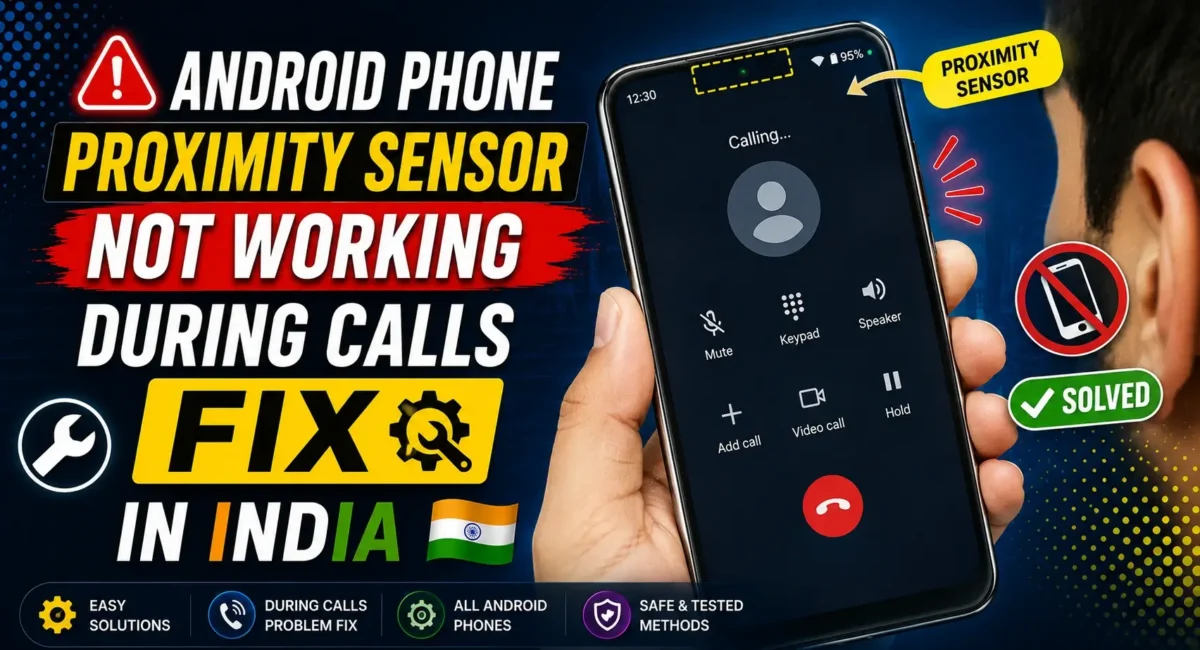
Proximity Sensor Not Working During Calls? Have you ever been on a phone call and noticed that your screen stays ON even when you bring the phone close to your ear?
This is a common issue many Android users face: 👇
- Screen does not turn off during calls
- Cheek accidentally presses buttons
- Call gets muted or disconnected
- Speaker turns on automatically
- Touch screen works while talking
The reason behind this is usually the proximity sensor.
The proximity sensor is a small hardware component that detects when your phone is near your face and automatically turns the display off to prevent accidental touches.
In this guide, we will explain why is your Android phone proximity sensor is failing during calls and how to fix the screen not turning off problem safely.

What Is a Proximity Sensor?
The proximity sensor is located near the top of your smartphone, usually around:
- Front camera area
- Earpiece
- Display edge
Its job is simple:
When you put your phone near your ear:
- Sensor detects your face
- Screen turns OFF
When you move the phone away:
- Sensor detects distance
- Screen turns ON again
If this process fails, your phone may behave incorrectly during calls.
Common Signs of Proximity Sensor Problems :
You may have a proximity sensor issue if:
- Screen stays on during calls
- Accidental touches happen
- Call disconnects randomly
- Speaker activates by mistake
- Face touches buttons on screen
- Display turns off slowly
Why Does the Proximity Sensor Stop Working?
There are several possible reasons.
1. Dirty Sensor Area
This is the most common reason. Dust, oil, fingerprints, or dirt can block the sensor.
Over time:
- Pocket dust collects
- Screen protector edges become dirty
- Ear area gets oily
The sensor cannot correctly detect your face.
Fix:
Clean the top area of your phone using:
- Soft microfiber cloth
- Dry cleaning cloth
Avoid using:
- Water directly
- Harsh chemicals
2. Screen Protector Blocking Sensor
Many users install:
- Tempered glass
- Privacy protectors
- Full-screen guards
Sometimes the protector covers the sensor area.
This can cause:
- Wrong distance detection
- Delayed screen off
- Random behavior
Fix:
Check your screen protector.
If it covers the top sensor area:
- Remove it temporarily
- Test a call
If the problem disappears, replace it with a compatible protector.
3. Software Bug After Android Update
Major Android updates can sometimes affect sensors.
Problems may appear after:
- Android updates
- Security patches
- UI updates
Examples:
- Android 15 update
- Android 16 update
The sensor hardware may be fine, but software calibration can fail.
Fix:
Restart your phone first.
Then check:
- Settings System Update
Install any pending updates.

4. Phone Case Blocking the Sensor
Some thick cases cover the top edge.
Especially:
- Rugged cases
- Flip covers
- Cheap covers
They can interfere with sensor readings.
Fix:
Remove the case and test.
If the issue is solved, use a better-fitting case.
5. Temporary System Glitch
Sometimes Android background services stop working correctly.
A simple restart can fix:
- Sensor service errors
- Temporary bugs
- Memory issues
Fix:
Restart your smartphone.
This reloads:
- System UI
- Sensor services
- Phone app processes
6. Faulty Phone App
Sometimes the issue is not the sensor.
The calling app may have problems.
Fix:
- Clear Phone App Cache
Steps:
- Settings Apps Phone Storage
Tap:
- Clear Cache
This will not delete your contacts.
7. Disable Accidental Touch Protection Settings
Some Android brands have extra call settings.
Check:
Phone App Settings Calling Settings
Look for:
- Proximity sensor option
- Pocket mode
- Accidental touch protection
Enable them if available.
How to Test Proximity Sensor on Android :
Many Android phones have hidden testing menus.
Try:
- Open Dialer
Enter:
- 4636
- (Works only on some phones)
Look for:
- Sensor testing
You can check:
- Proximity sensor value
- Detection status
Brand-Specific Fixes :
Samsung Phones
Try:
- Settings Display
Check:
- Accidental touch protection
Also run:
- Samsung Members Diagnostics Sensors
Xiaomi / Redmi / POCO :
MIUI/HyperOS users can test sensors:
- Settings About Phone Detailed Info
- or hardware test menu.
Realme / OPPO :
Go to:
- Phone Manager Diagnostics
Check sensor health.

Vivo :
Open:
- iManager Phone Test
Run sensor diagnostics.
Calibrate Proximity Sensor :
Some phones allow sensor calibration.
General steps:
1. Open hardware test menu
2. Select proximity sensor
3. Run calibration
4. Restart phone
Availability depends on the brand.
Does Factory Reset Fix Proximity Sensor Problems?
Sometimes.
A factory reset can help if the problem is caused by:
- Corrupted settings
- Software conflict
But do it only after trying simpler fixes.
Before reset:
Backup:
- Photos
- Contacts
- Files
What NOT To Do :
Avoid these mistakes: ❌
Do Not Hit the Phone
- Physical impact can damage sensors.
Do Not Use Random Calibration Apps
- Many apps cannot fix hardware sensors.
Do Not Open the Phone Yourself
- The sensor is near delicate components.
Opening the device can create more problems.
When Is It a Hardware Problem?
Visit a service center if:
- Sensor never works
- Phone was dropped
- Water entered device
- Screen replacement was done recently
- Sensor test fails
Possible hardware causes:
- Damaged sensor module
- Loose connector
- Display alignment issue
After Screen Replacement: Common Proximity Sensor Issues
If your phone recently had a display replacement, check this.
A wrong-quality display or improper installation can cause:
- Sensor misalignment
- Screen staying on during calls
- Incorrect detection
This is common with third-party repairs.
Best Quick Fix Checklist :
Try these steps:
- Clean top sensor area
- Remove screen protector temporarily
- Remove phone case
- Restart phone
- Update software
- Clear Phone app cache
- Run sensor diagnostics
- Reset only if needed

Final Verdict :
If your Android phone proximity sensor is failing during calls and the screen doesn’t turn off, the problem is usually caused by a blocked sensor, screen protector, software glitch, or incorrect settings.
Most users can fix it without repair by:
- Cleaning the sensor area
- Checking accessories
- Updating software
- Testing sensor settings
However, if the sensor fails completely after damage or repair, professional service may be required.
A properly working proximity sensor is important not only for comfort but also to prevent accidental touches during calls.
🔗
📌”POCO India — Official Link”👈

I went over this site and I believe you have a lot of wonderful information, bookmarked (:.
Thanks.