
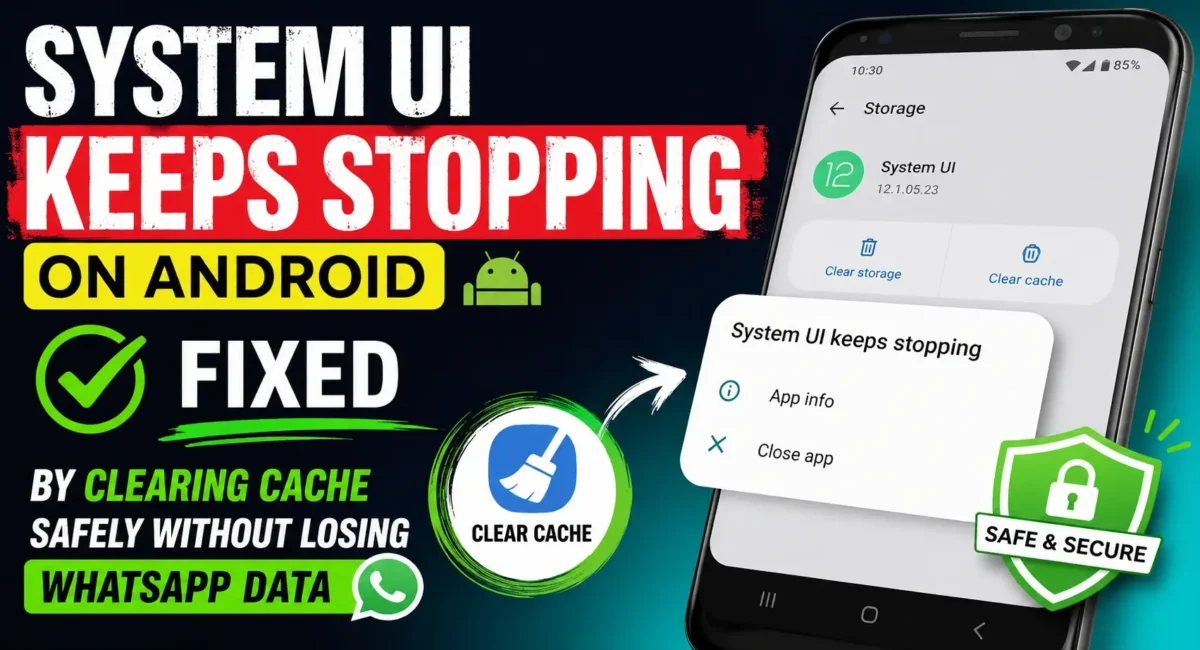
Android smartphones are designed to handle thousands of background processes every day, but sometimes users face frustrating system errors. One of the most common problems is the System UI Keeps Stopping error on Android
This issue can suddenly appear when:
- Unlocking the phone
- Opening apps
- Changing wallpapers
- Pulling down the notification panel
- Using navigation buttons
- Switching between apps
Many users panic and think their data will be deleted if they try to fix it.
The good news is that in most cases, you can solve the System UI Keeps Stopping Error on Android by clearing cache and performing simple troubleshooting steps — without losing WhatsApp chats, photos, or personal files.
In this guide, we will explain the causes, safe fixes, and exactly what you should avoid.

What Does System UI Keeps Stopping Mean?
System UI is an important Android component responsible for the visual parts of your phone.
It controls:
- Home screen
- Status bar
- Notification panel
- Navigation buttons
- Lock screen
- Volume controls
- Screenshots interface
- Recent apps screen
When System UI crashes, Android shows the message:
- System UI keeps stopping
It does not mean your entire phone is broken. Usually, a temporary software issue causes the crash.
Common Reasons Behind System UI Keeps Stopping Error :
Before fixing it, understand why it happens.
1. Corrupted Cache Files
Android stores temporary files to make apps load faster. Sometimes these files become corrupted after:
- Software updates
- App updates
- Long usage periods
This is one of the most common reasons.
2. Buggy System Update
A new Android update can sometimes introduce bugs. After an update, users may experience:
- UI crashes
- Lag
- Random restarts
- Battery drain
3. Third-Party Launcher Problems
Custom launchers or home screen apps can conflict with System UI.
Examples:
- Third-party launchers
- Theme apps
- Custom icon packs
4. Low Storage Space
When your phone storage is almost full, Android processes may struggle.
Symptoms:
- Apps freezing
- Slow performance
- System UI crashes
5. Faulty App Permissions
Some apps require access to:
- Display over other apps
- Accessibility settings
- Notifications
Incorrect permissions can sometimes create conflicts.
How to Clear System UI Cache Safely :
Clearing cache is usually the first step. It removes temporary files but does not delete:
- WhatsApp chats
- Photos
- Videos
- Contacts
- Documents
Follow these steps: 👇
Method 1: Clear System UI Cache
Step 1:
Open:
- Settings → Apps → See All Apps
(On some phones: Settings → Apps → Manage Apps)
Step 2:
Tap the three dots or menu option.
Select:
- Show System Apps
Step 3:
Search:
- System UI
Open it.
Step 4:
Tap:
- Storage & Cache
Step 5:
Select:
- Clear Cache
Do not press:
- Clear Storage / Clear Data
because that resets the app.
Step 6:
- Restart your phone.
Check if the problem is fixed.
Clear Android System Cache Partition (Advanced) :
Some Android phones allow clearing system cache through recovery mode.
- This is different from factory reset.
- It removes temporary system files.
General steps:
1. Turn off phone
2. Enter recovery mode
3. Select Wipe Cache Partition
4. Restart device
Note:
Recovery options differ by brand.
Will Clearing Cache Delete WhatsApp Data?
No. A normal cache clear does not remove WhatsApp data.
Your:
- Messages
- Images
- Videos
- Groups
remain safe.
WhatsApp data is stored separately.
However, avoid pressing:
- Clear Data / Clear Storage
inside WhatsApp settings unless you have a backup.
Restart Your Phone (Simple Fix)
A simple restart can solve temporary System UI crashes.
Restarting clears:
- Temporary RAM issues
- Background process errors
- Minor software glitches
Try this before advanced solutions.
Update Android System WebView :
Android System WebView helps apps display web content.
A faulty WebView update can cause:
- App crashes
- UI problems
- Freezing
Go to:
- Play Store → Android System WebView → Update
Also update:
- Google Chrome
- Google Play Services
Remove Recently Installed Apps :
If the issue started after installing an app:
Try uninstalling:
- Theme apps
- Cleaner apps
- Launcher apps
- Wallpaper apps
Some apps modify system behavior and can create conflicts.

Boot Into Safe Mode :
Safe Mode starts Android with only system apps. This helps identify third-party app problems.
General method:
1. Hold power button
2. Long press Power Off
3. Select Safe Mode
If System UI works normally in Safe Mode:
- A third-party app is likely causing the issue.
Free Up Storage Space
Keep at least:
- 10–15% storage free
Delete:
- Duplicate videos
- Unused apps
- Large downloads
Low storage can create system instability.
Check for Android Updates
Manufacturers often release fixes.
Go to:
- Settings → System Update
- Install available updates.
Updates may fix:
- UI crashes
- Security issues
- Performance bugs
Advanced Fix: Reset App Preferences
This does not delete personal files.
It resets:
- Disabled apps
- Default apps
- Permission settings
Steps:
- Settings → Apps → Reset App Preferences
This can fix permission conflicts.
What NOT To Do :
Avoid these mistakes:
- Do Not Factory Reset Immediately
A factory reset deletes:
- Apps
- Accounts
- Files
Try safer fixes first.
Do Not Install Random Cleaner Apps :
Many RAM booster apps create more problems.
- Android already manages memory.
Do Not Clear System Storage
- Only clear cache unless you know what you are doing.
When Should You Visit a Service Center?
Consider professional help if:
- System UI crashes repeatedly
- Phone restarts randomly
- Screen becomes unresponsive
- Phone gets extremely hot
- Issue continues after reset
It may indicate:
- Firmware corruption
- Hardware problem
- Storage failure
Brand-Specific Notes :
Samsung Phones
Try:
- Settings → Battery and Device Care → Storage
and update software.
Xiaomi / Redmi / POCO
- MIUI/HyperOS theme apps can sometimes cause UI crashes.
Try removing custom themes.
OnePlus
- Check launcher updates and OxygenOS updates.
Realme / Oppo / Vivo
- System launcher and theme services can sometimes create conflicts.

Final Verdict :🙌
The System UI Keeps Stopping Error on Android is usually a software-related issue and can often be fixed without losing your data.
The safest troubleshooting order is:
1. Restart phone
2. Clear System UI cache
3. Update Android components
4. Remove problematic apps
5. Check storage
6. Reset app preferences
Most importantly, clearing cache is not the same as deleting data — your WhatsApp chats and personal files remain safe.
With the right steps, you can restore normal Android performance without performing a risky factory reset.
🔗
📌”OnePlus India — Official Link”👈
Frequently Asked Questions — FAQ/s
Does System UI crashing delete my photos?
No. System UI errors normally do not delete personal files.
Will clearing cache delete WhatsApp chats?
No, clearing cache is safe. Avoid clearing WhatsApp storage.
Should I install a cleaner app?
No. Use Android’s built-in storage tools.

Today, while I was at work, my sister stole my iPad and tested to see if it can survive a 30 foot drop, just so she can be a youtube sensation. My iPad is now broken and she has 83 views. I know this is entirely off topic but I had to share it with someone!
interesting..