
Introduction :🧧
Pixel 10 Display Issue : The Google Pixel 10 (US) is shaping up to be another great Pixel phone of the year with clean, fast software, great AI features and an excellent camera system.
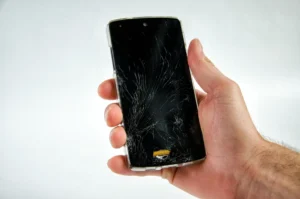
However, there is no perfect thing. Shortly after the release, many users began to complain about screen-related problems – muted colors, random flickering, pink tint, too dim in sunlight outdoors, unresponsive touch (or lag) and worst of all, some report getting black screen while running apps or talking on phone.
If your Pixel 10 screen doesn’t feel as bright and as buttery smooth as it should, you’re not alone. This lengthy post details all Pixel 10 screen problems, why they occur and what you can do about them easily.
Let’s get into it.
📌[Also Read] — “Pixel 9 Pro Display Problem Fix” ⇒ “Pixel 9 Display Looks Dull Fix” ⇒ “Pixel 9 Pro XL Display issue Fix“⚠
Common Display Issues on the Google Pixel 10 :🤔
Here are the display problems most users are complaining about :
- Dull Or Washed-Out Colors.
- Low Brightness In Outdoor Use.
- Pink Tint Or Green Tint On White Backgrounds.
- Screen Flickering At Low Brightness.
- Adaptive Brightness Not Adjusting Correctly.
- Touch Response Lag During Swipes.
- Black Screen During Calls Or App Switching.
- Random Display Freezing For 1–2 Seconds.
- UI Elements Ghosting During Scrolling.
These issues don’t show up on every device, but they are common enough to trend across several user groups.
🤔Why Is the Pixel 10 Showing Display Problems?
There are several reasons behind the Pixel 10’s display issues. The phone uses Google’s upgraded LTPO AMOLED panel, but software and hardware factors both play a role.
Let’s break down the most likely causes.
1. A Software Bug After Recent Updates :
The most common reason behind Pixel 10 display issues is Google’s new software update, especially the first few patches after launch.
Many users noticed dull colors and tinting right after installing an update.
Software calibration bugs affect :
- Color accuracy
- Brightness levels
- Display temperature
- Screen flicker at low brightness
Most Pixel devices face these issues in the first 2–3 months after release, until Google fixes them via monthly updates.
2. Over-Aggressive Adaptive Brightness :
- Pixel 10’s ambient sensor sometimes reduces brightness too much, making the screen look washed out or dim.
- The algorithm tries to save battery but ends up hurting visibility.
3. LTPO Panel Calibration Problems :
The Pixel 10 uses a new LTPO 1–120Hz display.
Sometimes these panels ship with slight calibration inconsistencies, causing :
- Tint issues
- Uneven brightness
- Flicker
- Contrast shifts
It’s common with new-generation OLED panels.

4. High Refresh Rate + Low Brightness = Flicker :
Many AMOLED screens flicker at low brightness because of PWM (Pulse Width Modulation).
Pixel 10 users notice this especially when :
- Watching videos at night
- Using dark mode
- Lowering brightness to 10–20%
This can cause eye strain or screen shimmering.
5. Overheating From AI Tasks or Apps :
When the phone gets warm, the Pixel 10 automatically reduces brightness to prevent damage.
This leads to :
- Sudden dimming
- Washed-out colors
- Temporary display lag
This is why the display looks different when gaming or using the camera for long periods.
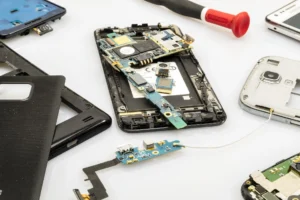
6. Hardware Defects (Rare but Possible) :
Some units may have :
- Weak OLED layers
- Faulty display drivers
- Loose display connectors
- These often cause touch lag, ghost touches, or random black screens.
If symptoms get worse over time, hardware may be the reason.
📌[Must Read] — “Pixel 9 Pro Battery Drain Fix” ⇒ “Pixel 9 Battery issue Fix” ⇒ “Pixel 9 Pro XL Battery Drain Fix“🔋
How to Fix Pixel 10 Display Issues :🔥
Here are the best solutions that work for most users.
1. Reset Display Colors and Brightness Data :
This helps when the picture looks washed out or dim.
Steps :
- Open Settings
- Go to Apps → Device Health Services
- Tap Storage
- Select Clear Data
This resets learning data for adaptive brightness.
2. Turn Off Adaptive Brightness Temporarily :
If your screen keeps dimming for no reason :
- Settings → Display → Adaptive Brightness → Off
- Try manual brightness for a day.
If the screen stays consistent, the issue was the brightness algorithm.
3. Change Color Mode :
If the color looks dull :
- Settings → Display → Colors → Boosted / Adaptive / Natural
Most users prefer Boosted for a more vibrant look.
4. Disable Smooth Display :
If your screen flickers or feels laggy :
- Settings → Display → Smooth Display → Off
- This forces the panel to stay at 60Hz.
Not a permanent solution, but useful when the phone misbehaves.
5. Restart Your Phone Once a Day :
This clears :
- Background tasks
- Display driver glitches
- Temporary color bugs
- Sensor errors
A simple reboot often fixes 30–40% of Pixel problems.
6. Turn Off Adaptive Touch :
If you feel touch lag :
- Settings → Display → Touch Sensitivity → Off
This helps especially when scrolling Instagram, YouTube, or Chrome.
7. Update Your Pixel 10 Immediately :
- Most display problems come from software.
- Google usually fixes them quickly.
- Settings → System → Software Update
- Install everything — including Play system updates.
8. Change PWM Flicker Settings :
This helps users who notice flicker at low brightness.
Enable :
- Settings → Display → Flicker Reduction → On
(If available in your region).
9. Cooling the Phone Helps Display Brightness :
If your Pixel 10 screen dims during gaming or camera use :
- Remove the case
- Stop charging temporarily
- Close running apps
- Avoid sunlight
When the phone cools down, the brightness returns to normal.
10. Try Safe Mode To Detect App Problems :
A third-party app could be causing flicker or tint.
To enter Safe Mode :
- Hold Power Button → Long-press “Power Off” → Safe Mode
If the screen works normally in Safe Mode → an app is the problem.
When You Should Contact Google Support :🕵️♂️
You should reach Google support if you notice :
- Permanent pink or green tint.
- Black screen during calls.
- Ghost touches on the lock screen.
- Display flicker above 40% brightness.
- Random screen freeze 5+ times per day.
- Vertical or horizontal lines.
These indicate a deeper hardware issue.
📌[Don’t Miss] — “Pixel 9 Pro Processor issue Fix” ⇒ “Pixel 9 Camera Overheating Fix“🔥
Google may :
- Repair
- Replace
- Or offer a refurbished unit
- Under warranty.
Final Words :🙌
The Google Pixel 10 is an overall wonderful phone, but screen problems such as dim brightness, flickering, color tint, and touch lag start to plague some early users. The good news is that most of these issues relate to software calibration rather than hardware defects.
Most display problems can be fixed at home with a few simple adjustments a brightness reset, color tweaks, updates, or refresh rate changes. And if your unit is still acting up, Google Support is just as swift with repairs or replacements.
The Pixel 10 will continue to receive new features And improvements on the display should keep getting more stable over time. For the time being, here are some fixes to help you get a brighter, smoother, and more accurate screen.
🔗
 ”Check the official Google Pixel 10 product page (U.S.) here.”
“FAQ/s”😀
1 Q. Why does the Google Pixel 10 display flicker?
Ans. Google Pixel 10 flickers mostly due to refresh rate switching or minor software glitches.
2 Q. How to fix unresponsive touch on Google Pixel 10?
Ans. Quick fix for Google Pixel 10 unresponsive touch — restart the phone, install latest updates, and toggle auto-brightness/refresh rate off.
3 Q. Is green or yellow tint on Google Pixel 10 a hardware problem?
Ans. Google Pixel 10 green/yellow tint is usually a software color-profile issue; hardware fault is rare.
4 Q. Can software updates fix Google Pixel 10 display issues?
Ans. Yes, most Google Pixel 10 display issues are fixed via software updates; hardware defects are covered under warranty.
2 thoughts on “Pixel 10 Display Issue – Shocking Real Reason & Fast Fix You Should Know! 🔥 – (US)”