
Introduction :🧧
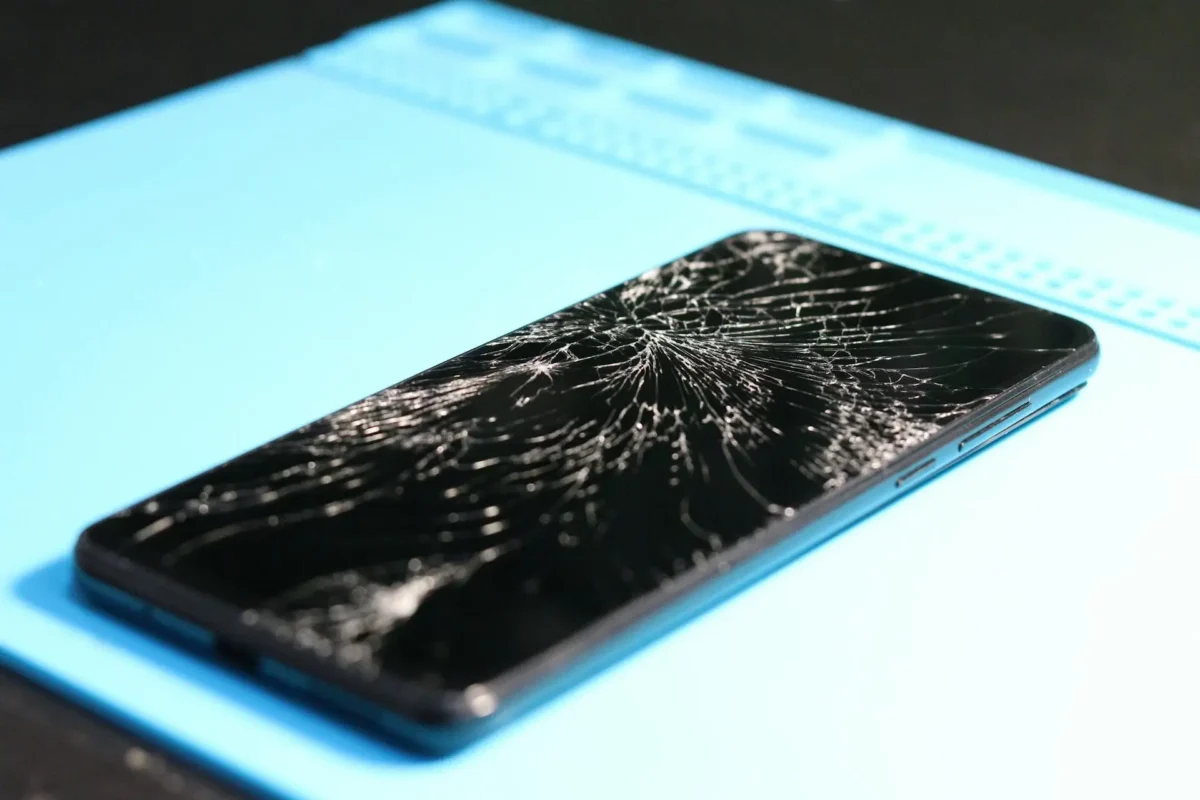
Google Pixel 10 Pro XL Display Issues : A display is a crucial part of a smartphone. From videos and social media to gaming and photography, a screen is what really determines how high-end a phone feels. A faulty screen can ruin the entire experience, even if you’ve got a great camera and a powerful processor.
Google has released the Pixel 10 Pro XL (US) as a premium flagship with a big, high-resolution OLED screen, fluid refresh rate, and great color accuracy. The screen is pretty damn good on paper and competes with the best in the market.
Yet, many users are reporting display problems after using the product in the real world. Searches for things like Pixel 10 Pro XL display issue, Pixel 10 Pro XL screen flickering, Pixel 10 Pro XL touch problem are increasing.
If your Pixel 10 Pro XL display is not acting up as expected, here is a comprehensive list of issues, why they happen, and what you can do about them.
📌[Must Read] — “Pixel 9 Pro XL Screen Off Fix“📱 ⇒ “Pixel 10 Display Black Out Solution“📱
Common Display Problems on Pixel 10 Pro XL :😲
1. Display Flickering at Low Brightness
One of the most reported issues is screen flickering, especially:
- At low brightness levels
- In dark mode
- While viewing gray or dark backgrounds
This flickering becomes more noticeable in low-light environments and can cause eye strain.
2. Inconsistent Brightness Levels
Some users report that:
- Auto-brightness behaves unpredictably
- Screen suddenly becomes dim or overly bright
- Brightness changes without lighting changes
This makes outdoor visibility and indoor comfort inconsistent.
3. Green or Pink Tint on Display
Several users notice:
- Green tint at low brightness
- Pink or uneven color tones on white backgrounds
- Color shift when viewing from different angles
This issue is especially visible on dark screens and night mode usage.
4. Touch Response Issues
The Pixel 10 Pro XL display sometimes shows:
- Delayed touch response
- Missed touches near screen edges
- Inaccurate input while typing fast
This affects daily usage like typing, gaming, and navigation.
5. Screen Stuttering Despite High Refresh Rate
Even with a high refresh rate enabled, users report:
- Choppy scrolling
- Frame drops while scrolling social media
- UI animations not feeling smooth
This defeats the purpose of a flagship-grade smooth display.
6. Burn-in and Image Retention
Some long-term users have reported:
- Faint status bar icons visible permanently
- Navigation bar ghosting
- Image retention after extended static content
While not widespread, it raises concerns about OLED longevity.
🤔Why Does the Pixel 10 Pro XL Have Display Issues?
1. OLED Panel Calibration Issues
The display panel itself is high quality, but:
- Poor factory calibration
- Inconsistent panel batches
- Aggressive power-saving tuning
Can result in flickering, tinting, and brightness inconsistency.
2. Software and Display Driver Bugs
Many display issues appear after:
- Android updates
- Pixel Feature Drops
- Security patches
This suggests software-level problems rather than hardware failure.
📌[Don’t Miss] — “Pixel 10 Pro Fold Screen issue Fix“📱 ⇒ “Pixel 10 Sudden Charging Drop Fix – (EU)“🔋
3. Adaptive Brightness and AI Interference
Pixel phones rely heavily on AI-based brightness control:
- Learns user behavior over time
- Adjusts brightness dynamically
Sometimes this system overcorrects, causing unstable brightness changes.
4. High Refresh Rate Optimization Issues
Switching between:
- 60Hz and high refresh rate
- Different apps and content types
Can cause micro-stutters and inconsistent smoothness if not optimized well.
5. Heat and Power Management Effects
When the phone heats up:
- Display brightness is reduced
- Refresh rate may drop
- Touch sampling rate can decrease
This is done to protect hardware but affects user experience.
How to Fix Pixel 10 Pro XL Display Problems :🔥
1. Update Software Regularly :
- Google often fixes display bugs via updates. Make sure you’re on the latest stable Android version.
2. Turn Off Adaptive Brightness :
If brightness feels unstable:
- Disable adaptive brightness
- Manually set brightness
- Observe improvement
This helps identify AI-related brightness issues.
3. Adjust Color Settings :
Try changing:
- Display color mode (Natural vs Adaptive)
- Disable enhanced contrast
- Reduce night light intensity
This can reduce tinting and uneven colors.
4. Reduce Refresh Rate :
Switching to a fixed refresh rate can:
- Reduce stutters
- Improve stability
- Lower heat generation
Not ideal, but useful for troubleshooting.
5. Avoid Extreme Low Brightness :
- OLED flickering is more noticeable at very low brightness. Keeping brightness slightly higher can reduce flicker.
6. Remove Screen Protectors :
Low-quality screen protectors can:
- Affect touch sensitivity
- Cause glare and color distortion
Test the display without one.
7. Restart the Phone Weekly :
- Restarting clears temporary system glitches that may affect display behavior.
8. Factory Reset :
If display problems started after updates:
- Back up your data
- Perform a factory reset
- Set up the phone fresh
This often fixes deep software conflicts.
9. Visit Google Authorized Service Center :
If you notice:
- Severe flickering
- Persistent tinting
- Burn-in symptoms
A display panel replacement or diagnostic may be required.
🙄Is the Pixel 10 Pro XL Display Bad?
No. The display itself is capable and premium. It offers:
- High resolution
- Smooth refresh rate
- Excellent sharpness
However, issues arise due to:
- Software optimization problems
- Calibration inconsistencies
- Aggressive power and AI controls
📌[Also Read] — “Pixel 10 Pro Display Problem Fix“📱
🚧Who Should Be Concerned About These Display Issues?
You may notice problems if you:
- Use dark mode extensively.
- Keep brightness very low.
- Watch content for long hours.
- Are sensitive to flicker and color shifts.
Casual users may not notice these issues immediately.

Conclusion :🙌
The Google Pixel 10 Pro XL screen is visually stunning but not without issues. Most of the complaints related to the display are due to software tuning, the behavior of the brightness control and the calibration of the OLED, and not because of poor quality hardware.
With regular updates and adjustments to the settings and with attentive utilization, most users will have a smooth and pleasing output. Yet, users who crave 100% perfection and are sensitive to display imperfections could be annoyed by these flaws.
🔗
 ”Check the official Google Pixel 10 Pro XL product page (U.S.) here.”
“FAQ/s”😀
1 Q. What display problems are users reporting on the Google Pixel 10 Pro XL?
Ans. Google Pixel 10 Pro XL users commonly report screen flickering, uneven brightness, touch response delays, and occasional display freezing, especially after software updates or extended usage.
2 Q. Is the Google Pixel 10 Pro XL display issue caused by software or hardware?
Ans. In many cases, Google Pixel 10 Pro XL display issues are software-related, such as bugs in updates or display calibration problems. However, persistent flickering or dead pixels may indicate a hardware fault.
3 Q. How can I fix screen flickering or touch issues on the Google Pixel 10 Pro XL?
Ans. On the Google Pixel 10 Pro XL, updating to the latest Android version, restarting in Safe Mode, adjusting display refresh rate settings, and clearing problematic apps often resolve flickering or touch issues.
4 Q. When should I contact Google support for a Google Pixel 10 Pro XL display problem?
Ans. You should contact Google support for the Google Pixel 10 Pro XL if the display issue continues after updates and resets, or if you notice physical screen damage, dead pixels, or unresponsive touch areas.