
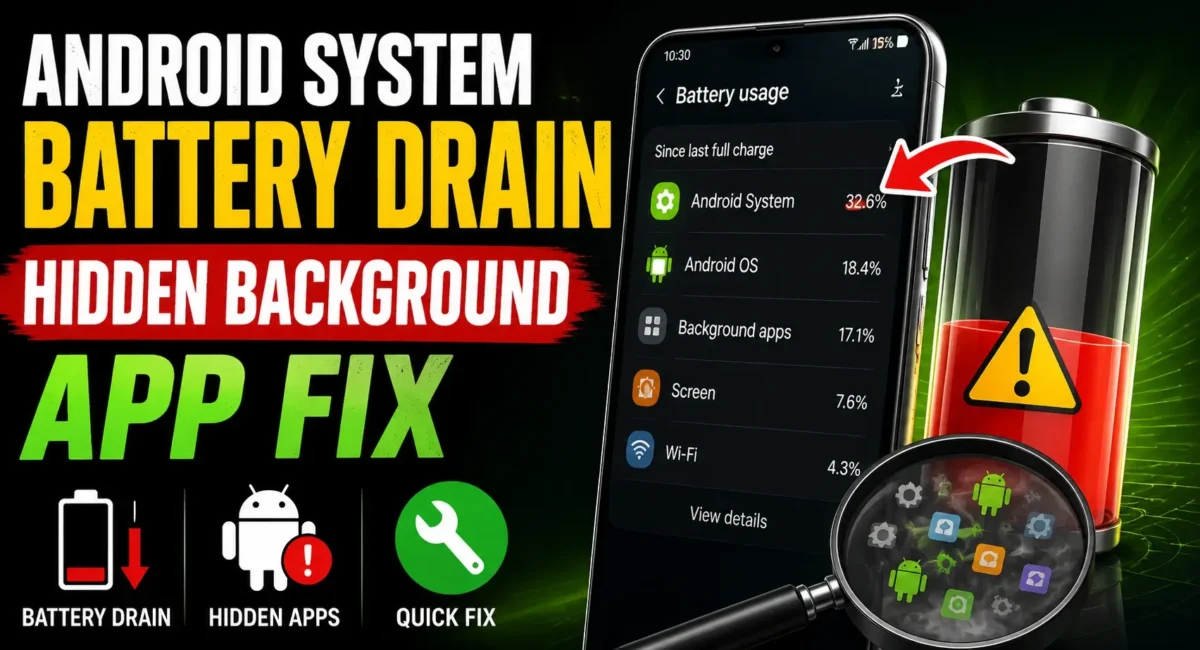
Have you ever noticed your phone’s battery percentage decreasing at an abnormal rate even though you didn’t use it that much? A lot of Android users come across scenarios wherein their battery percentage drops significantly overnight, or while they are using the device in the middle of the day. There are occasions when your phone will show Android System or a background task that takes up a surprising amount of battery.
If you are searching for Android System Battery Drain Glitch, you are likely dealing with a situation where an unknown app, system process, or background activity is silently running and consuming battery in the background.
This guide explains how to find the hidden app draining your battery, why the issue happens, and practical steps to fix it without immediately performing a factory reset.

What Is Android System Battery Drain?
Android phones constantly run background processes to keep essential features working, including:
- Notifications
- Network connection
- Location services
- App syncing
- Security checks
- System updates
- AI features
A small amount of background battery usage is normal.
However, when you notice:
- Battery dropping 20–40% quickly
- Phone heating while idle
- Battery drain overnight
- Android System showing unusually high usage
there may be a background process consuming excessive power.
Why Does Android System Show High Battery Usage?
Many users blame the Android operating system itself, but the real cause is often another app communicating with system services.
Common reasons include: 👇
1. Background App Activity
Some apps continue running even after you close them.
Examples:
- Social media apps
- Shopping apps
- VPN apps
- Video editors
- Cloud backup apps
- Games
These apps may constantly:
- Sync data
- Check notifications
- Use location
- Refresh content
2. Buggy App After Update
A recent app update can sometimes create battery problems.
Signs:
- Battery drain started suddenly
- Phone heats up without use
- One app appears repeatedly in battery stats
A poorly optimized update can keep the CPU awake.
3. Google Play Services Issue
Google Play Services manages many Android functions.
It handles:
- Location
- App authentication
- Notifications
- Security services
If it gets stuck, it can cause unusual battery consumption.
4. Poor Network Signal
Weak mobile signals force your phone’s modem to work harder.
This happens often with:
- 5G networks
- Low signal areas
- Frequent network switching
Your phone keeps searching for a better connection, increasing battery usage.
How to Find the Background App Using 40% Battery :
The first step is identifying the real culprit.
Method 1: Check Battery Usage
Open:
Settings → Battery → Battery Usage
You will see:
- Screen usage
- Apps
- System processes
Look for apps showing unusually high percentages.
Example:
- Instagram – 35%
- Chrome – 25%
- Google Play Services – 30%
This immediately identifies the problem area.
Method 2: Check Background Activity
Some apps consume battery even when not actively opened.
Go to:
Settings → Apps → Select App → Battery
Look for:
- Background activity allowed
- Unrestricted usage
Change it to:
- Optimized
This prevents unnecessary battery drain.
Method 3: Use Safe Mode Test
Safe Mode disables third-party apps temporarily.
Steps
1. Hold the power button.
2. Long press Power Off.
3. Select Safe Mode.
Use the phone normally for some time.
Result
If battery drain stops:
- A third-party app is likely causing the issue.
If the drain continues:
- The issue may involve system software or hardware.
Method 4: Check Battery Graph
Android provides a detailed battery timeline.
Look for:
- Sudden drops
- Usage during idle hours
- Continuous activity overnight
Example:
- Phone idle from 12 AM to 7 AM but loses 25%.
That indicates background activity.
Apps Commonly Responsible for Battery Drain :⚠
Some apps are more likely to cause background drain.
Social Media :
- Snapchat
- TikTok
They frequently refresh:
- Videos
- Messages
- Notifications
Navigation Apps :
- Google Maps
- Ride apps
Location tracking can consume significant power.
Cloud Apps
Examples:
- Google Photos
- Drive
- Backup tools
Continuous syncing may keep the device awake.

Fixes for Android System Battery Drain Glitch :🔥
Now that you have identified the issue, try these solutions.
1. Restart Your Phone
A simple restart clears:
- Stuck processes
- Memory issues
- Background loops
Many temporary battery bugs disappear after rebooting.
2. Update All Apps
Open:
- Play Store → Manage Apps → Update All
Developers often release fixes for battery-related bugs.
3. Clear App Cache
For problematic apps:
- Settings → Apps → Storage → Clear Cache
This removes temporary files without deleting your data.
4. Restrict Background Usage
For battery-heavy apps:
Settings → Battery → Background Restrictions
Choose:
- Restricted
- Optimized
Avoid setting unnecessary apps to unrestricted.
5. Turn Off Unused Features
Disable features you don’t need.
Examples:
- Bluetooth scanning
- Wi-Fi scanning
- Location access
- Nearby device scanning
These can silently consume power.
6. Adjust 5G Settings
If your phone constantly switches networks:
Try:
- Settings → Mobile Network
Change:
- 5G Auto
instead of:
- 5G Only
This can reduce modem workload.
7. Check for Malware or Suspicious Apps
Some apps abuse background permissions.
Warning signs:
- Unknown apps
- Excessive pop-ups
- Sudden battery drain
- Phone heating
Remove apps you don’t recognize.
Should You Clear Android System Data?
Many users try clearing system data immediately.
Usually, avoid doing this.
Instead try:
- Restarting
- Updating apps
- Checking battery usage
- Restricting background apps
System-level resets should be the last option.
Battery Drain After Android Update :🚧
A common situation:
Battery was fine before update, now it drains quickly.
After major updates, Android may temporarily perform:
- File optimization
- App re-indexing
- Background setup
This can last 1–3 days. If it continues beyond that, investigate apps and settings.
When Is Battery Drain a Hardware Problem?
Software is not always the reason.
Possible hardware causes:
- Old battery
- Damaged charging circuit
- Battery degradation
- Overheating
Signs:
- Sudden shutdowns
- Battery percentage jumps
- Phone heats while idle

Final Verdict :🙌
Android System Battery Drain Glitch is a lot misunderstood. In general Android itself is not the biggest culprit here it’s often a background app, a network activity or a stuck system service that is hogging too much power.
By monitoring battery stats, pinpointing background apps, limiting unnecessary activity, and making the most of network settings, you can usually bring your battery back to life.
If your phone is draining about 40% of its battery out of the blue, don’t rush to replace the battery. First, locate the hidden process that is causing the problem and then solve the root cause.
🔗
📌”Xiaomi India Official Website Link”👈
Frequently Asked Questions — FAQ/s
Why is Android System using so much battery?
Usually because a system service or app is keeping Android awake through background activity.
How do I find the app draining my battery?
Check Settings → Battery → Battery Usage to identify apps consuming the most power.
Can a factory reset fix battery drain?
It can help if software is corrupted, but it should be a last option.
Does 5G cause battery drain?
Yes, especially in weak signal areas where the phone constantly searches for a stable connection.
Why does my phone heat when I am not using it?
A background app, sync process, network activity, or software bug may be keeping the processor active.

1 thought on “Android System Battery Drain? Find the Hidden Background App Using 40% Battery”