

🧧Introduction :
Motorola Razr+ 2024 Display Issues : The Motorola Razr+ 2024 (US) ranks as one of the best foldable phones this year. The smartphone features a huge 6.9-inch pOLED internal display with 165Hz refresh rate along with a 4-inch external screen that lets you use apps without opening the phone.
Its display specifications look great on paper. However, in the real world, there are reports of users experiencing display problems including flickering and dimming, the touch not responding, dead pixels, and even issues with the hinge.
None of these are widespread problems that affect every unit, but all of them have come up enough to show up in community pages and forums from real owners. This article describes the most common display problems, why they happen, and what you can do about them.
📌[Also Read] — “Motorola Razr Ultra (2025) Ghost Touch Fix“📱 ⇒ “Pixel 10 Display Shocking Fix“📱
Common Motorola Razr+ 2024 Display Problems :⚠
Here are the display problems users frequently report:
- Screen flickering or PWM flicker.
- Touch responsiveness issues or delayed response.
- External display going black or unresponsive.
- Display confusion when folding/unfolding.
- Dead pixels or horizontal lines.
- Brightness not adjusting correctly.
- Hinge-related display stress.
- Always-On Display (AOD) irregularities.
Some issues are software-related, while others point to hardware sensitivity or user settings.
Problems & Fixes :🔥
1. Screen Flickering / PWM Dimming :
Some foldable OLED displays use Pulse Width Modulation (PWM) to adjust brightness. This means the display rapidly turns pixels on and off to simulate lower brightness levels. Motorola’s internal screens also use this technique, and some people can notice flickering at certain brightness levels, especially sensitive users. ([Notebookcheck][3])
Why It Happens :
- OLED panels usually use PWM to dim the screen because they don’t have a traditional backlight. While this helps reduce power consumption, the flickering frequency can fall inside the visible range for some people, especially at low brightness.
Fixes :
- Increase screen brightness slightly
- Avoid extremely low brightness
- Enable Eye Comfort features to reduce eye strain
- Check for software updates (some updates optimize PWM behavior)
Tip: Flickering generally doesn’t always indicate a defect it’s part of how many OLED displays control brightness.
2. Touch Responsiveness Problems :
Many users report that the screen occasionally doesn’t respond to taps, swipes, or gestures, especially around:
- The folding crease
- The edges of the internal display
- The external lock screen
This is visible in forums where users describe unresponsive touches or confusion between the internal and external screens.
Why It Happens :
- Foldable phones have complex touch layers, especially near the hinge. If the software pixel map or the digitizer doesn’t adjust correctly during folding/unfolding, taps may not register properly.
Fixes :
- Restart the phone (resets touch drivers)
- Ensure all system updates are installed
- Remove any third-party screen protector that’s not foldable-friendly
- Restart the phone if the external screen goes black
If the problem persists across apps and resets, it may require support.
3. External Display Black or Unresponsive :
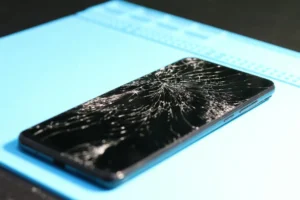
Some Razr+ 2024 owners report that the external display sometimes goes black while the phone is folded. The screen may wake up only after a force reboot or reopening the device.
Why It Happens :
- This behavior can be due to software glitches or display power-state conflicts between Android’s display manager and the fold transition rules. Sometimes the system incorrectly thinks the phone is open or closed and uses the wrong display layer.
Fixes :
- Restart the phone
- Force restart if the screen goes completely black
- (Press and hold Power + Volume Down for ~10–20 seconds)
- Update to the latest software Motorola often patches such bugs
If the issue continues even after updates, it may be worth contacting support for diagnostics.
📌[Must Read] — “Motorola Edge (2025) Touch Lag Solution“📱
4. Display Confusion with Fold State :
Users report odd behavior where the phone appears to use the internal display when folded or the external display when open. This can look like:
- Main screen turning off while the phone is open
- External screen lighting up even when the phone is still unfolded
- Both displays lighting simultaneously without intended cause
This seems to be a software / sensor interpretation problem, not a hardware fail. ([Reddit][6])
Fixes :
- Update software
- Restart the phone
- Avoid using gestures that trigger flip detection accidentally
This usually corrects itself over time or with software patches.
5. Dead Pixels & Display Lines :
A few users have seen permanent issues like:
- Black or colored dead pixels
- Rainbow or horizontal lines near the hinge
- Spots that don’t respond to touch
Such issues are rare but serious.
Why It Happens :
- Foldable displays are more complex than rigid screens. The internal flexible panels have layers that can degrade under stress or impact. Dead pixels and lines often originate from hardware defects or impact damage.
Fixes :
- Contact Motorola support these issues often require display panel service
- Avoid applying pressure near the crease
- Use the phone in a protective case
Motorola may repair or replace displays under warranty if the issue is hardware-related and not due to accidental damage.
6. Always-On Display (AOD) Or Screensaver Issues :
Several users note that the Always-On Display or screen saver stops working as expected, especially after wireless charging or software changes. The AOD may turn off until the screen is restarted.
Why It Happens :
- This issue can be a software bug related to sleep display settings or how the device handles AOD after charging cycles.
Fixes :
- Toggle AOD off and on again
- Restart the phone
- Update system software
- Verify that screen saver / AOD settings are correctly configured
General Display Fixes That Solve Most Problems :🚧
Update Your Phone Software
Software updates often fix display bugs.
- Settings → System → Software update → Download & Install
Restart Phone Regularly
- A weekly restart clears temporary display glitches and refreshes display drivers.
Remove Incompatible Screen Protectors
- Foldable screen protectors must be designed specifically for foldable displays. Incompatible protectors can affect touch and pixel mapping.
📌[Don’t Miss] — “Moto G Power (2025) Screen Problem Fix“📱 ⇒ “Motorola Edge 70 Network issye Fix – (EU)⚡
Avoid Excessive Pressure Near the Crease
- Even light pressure at the hinge edge can distort flexible layers over time. Handle with care.
Factory Reset
If display problems start after a deep software bug, a factory reset can fix corrupted system configurations.
- Settings → System → Reset options → Erase all data (with backup)
When to Contact Motorola Support :🕵️♂️
Contact support if you notice:
- Permanent black lines or dead pixels.
- Display not responding after tries and software updates.
- Touch unresponsiveness across sessions.
- External display stays black even after resets.
- Display shows hardware damage (cracks/creases with effect on display).
These symptoms point toward hardware or calibration issues needing professional repair.

Conclusion :🙌
Motorola Razr+ 2024 display issue can manifest in a variety of ways including screen flickering, screen freezing, dead pixels or the screen going completely black. Some of those problems are software-based and you can fix them through updates, by tweaking settings, by restarting or by putting on a little protective care.
But foldable displays are naturally more fragile than standard glass screens. Physical stress, strain on the hinge, and the factory screen protectors all factor into how the display manages over time.
With good handling and enough updates most people can enjoy the vibrant high refresh rate mit Razr+ 2024 displays. If you do encounter major or persistent problems, professional support can diagnose and fix hardware faults.
🔗
 ”Click on Motorola Razr+ 2024 (US) to see more details about this Motorola Smartphone.”
“FAQ/s”😄
1 Q. Why is the Motorola Razr+ 2024 having display issues?
Ans. The Motorola Razr+ 2024 display issues are often caused by software bugs, app conflicts, or foldable screen sensitivity. In some cases, physical stress on the hinge or inner display can also lead to flickering or touch problems.
2 Q. How can I fix the Motorola Razr+ 2024 display problem?
Ans. To fix Motorola Razr+ 2024 display issues, try restarting the device, updating to the latest software, clearing problematic apps, or resetting display settings. If the issue persists, a service check may be required.
3 Q. Is the Motorola Razr+ 2024 display issue a hardware problem?
Ans. The Motorola Razr+ 2024 display issue can be either software or hardware-related. Minor glitches are usually software-based, but screen flickering, dead pixels, or touch failure may indicate a hardware issue.
4 Q. Are Motorola Razr+ 2024 display problems common in the US?
Ans. Some Motorola Razr+ 2024 users in the US have reported display-related issues, especially after updates or heavy usage. However, not all devices are affected, and many issues can be resolved with simple fixes.
